The Appointment Scheduling skill lets your agent book meetings directly on a connected calendar while talking to a caller or web visitor. When this skill is enabled and configured, the agent can:
  • Offer available time slots
  • Agree on a date and time with the caller
  • Create a calendar event using your chosen provider
This works for both phone agents and agents used via the web widget.

How it works

When a call or conversation starts and the skill is enabled:
  • The agent loads roughly two weeks of available time slots from the selected calendar provider.
  • During the conversation, if the flow moves toward booking a meeting
    (for example, both sides agree to schedule a demo or consultation), the agent can:
    • Propose open time slots, or
    • Accept a time suggested by the caller and check if it’s available.
  • Once a time is confirmed, a meeting is created in your calendar provider.
  • If you enable Collect user’s email, the agent asks for an email address and uses it when creating the event; otherwise it uses the caller’s phone number.
If the provider cannot create the event (for example, an error or no availability), the agent informs the caller that it was not able to schedule the meeting and will let your team know.

Prerequisites

Before using Appointment Scheduling, you need:
  • At least one calendar provider connected in Providers, such as:
    • Microsoft Outlook
    • Cal.com V2
    • GoHighLevel
    • Calendly
  • An agent you want to enable this skill on.
You can also create or connect a provider directly from the Appointment Scheduling configuration dialog when you select Calendar Provider.

Enable Appointment Scheduling on an agent

  1. Go to Agents and select your agent.
  2. On the Basic Information tab, find Choose Skills.
  3. Click Appointment Scheduling to add the skill.
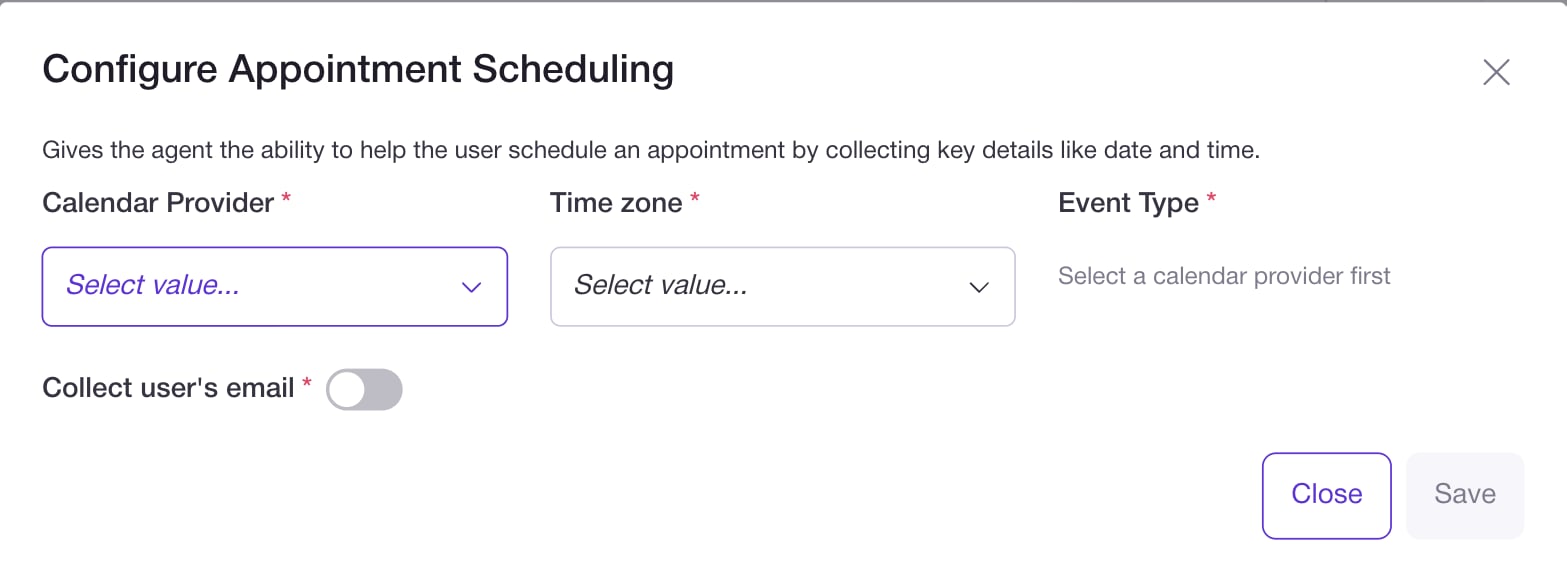
  4. A Configure Appointment Scheduling dialog opens.

Configure Appointment Scheduling

In the Configure Appointment Scheduling dialog you’ll see:
  • Calendar Provider (required)
    Choose which connected calendar provider this agent should use when booking meetings (for example, Microsoft Outlook, Cal.com V2, GoHighLevel, Calendly).
  • Time zone (required)
    Select the primary time zone for booking.
    The agent uses this when interpreting and offering times.
    Agents always know the current time and can convert between time zones as needed, but this setting defines the default for scheduling.
  • Event Type (required)
    Choose which event type or calendar to use when creating appointments.
    Examples:
    • On Cal.com: “15 Min Meeting”, “30 Min Meeting”, “Secret Meeting”, etc.
    • On Outlook: specific calendars like “Calendar”, “Birthdays”, etc.
    Make sure the chosen event type is configured correctly and available in your provider’s own settings.
  • Collect user’s email (toggle)
    When on:
    • The agent asks the caller for their email address.
    • The email is used when creating the calendar event so the invite goes to that address (and it can also be stored in call context).
    When off:
    • The booking is created using the caller’s phone number instead of an email.
After filling in these fields, click Save in the dialog, then save the agent.

Caller experience

With Appointment Scheduling configured, a typical flow might look like:
  1. The conversation reveals that a follow‑up meeting is needed
    (for example, the caller is interested in a demo, consultation, or intake call).
  2. The agent offers to schedule:
    “Would you like to schedule a time to speak with our team?”
  3. The agent either:
    • Proposes specific available slots, such as:
      “I have Tuesday at 3pm or Wednesday at 10am available. Which works better for you?”
    • Or asks the caller for a preferred time and checks if it is open.
  4. Once both sides agree on a date and time, the agent:
    • Confirms the details (date, time, time zone).
    • Collects the caller’s email (if enabled) or uses their phone number.
    • Creates the event in the selected calendar provider.
  5. If something goes wrong (no available slots, provider error),
    the agent lets the caller know it couldn’t complete the booking and indicates that a human will follow up.
The exact wording is controlled by your Agent Prompt, but the scheduling logic comes from this skill.

Tips and best practices

  • Use clear event types
    In your calendar provider, create event types that match your flow
    (for example, “Intro Call 15m”, “Demo 30m”, “Onboarding 60m”) so it’s obvious which one to select in Fluents.
  • Align time zones
    Set the Appointment Scheduling time zone to match where your team typically operates, and make sure your prompt tells the agent how to speak about time zones with callers.
  • Mention scheduling in the prompt
    In your Agent Prompt, explain when and why the agent should offer to schedule a meeting (for example, after qualifying a lead or answering initial questions).
  • Test end‑to‑end
    Before going live, use Test Call Agent:
    • Walk through the conversation until a meeting is booked.
    • Confirm that an event appears correctly in the right calendar, with the right time and attendee details.

Where to go next