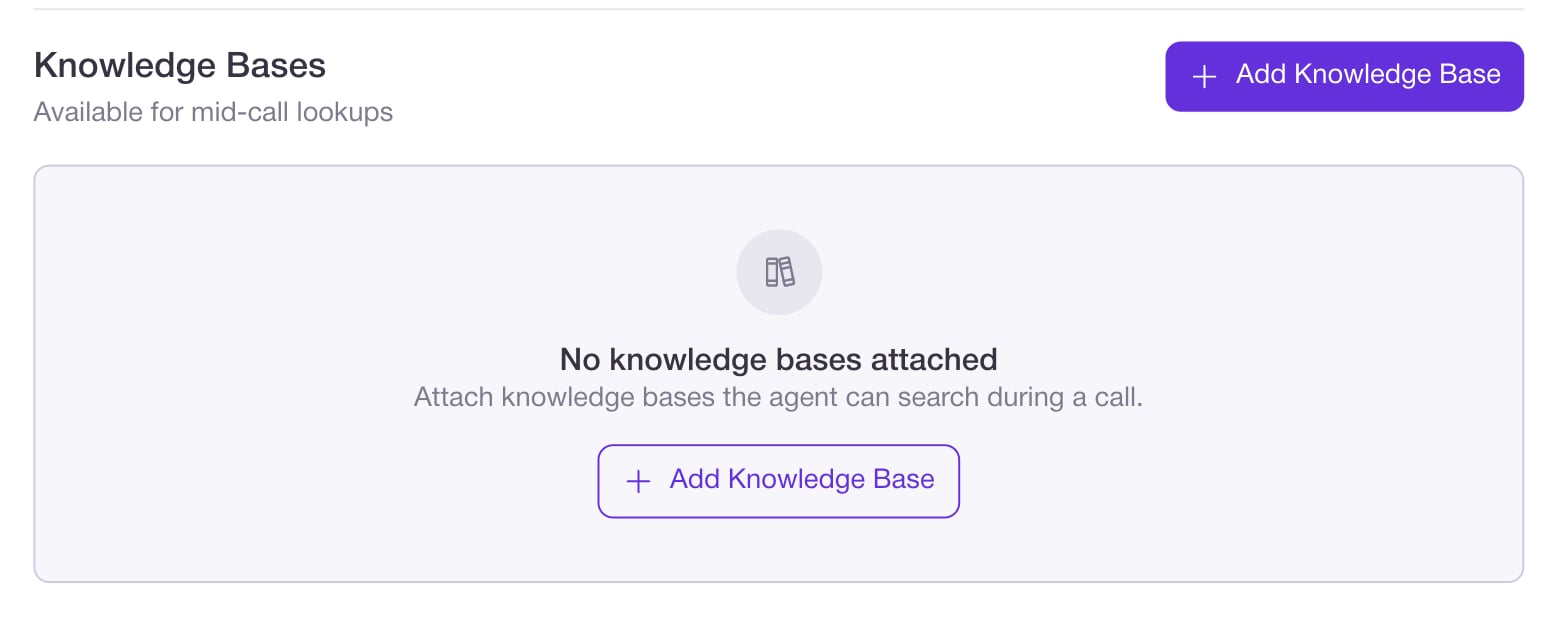
The Knowledge Search skill lets your agent answer questions using content from your Knowledge Bases (uploaded documents), instead of relying only on general AI knowledge. When this skill is configured on an agent, the agent can:
  • Search the selected knowledge bases during a call or web conversation.
  • Pull in relevant passages from your docs.
  • Use that information when answering questions.
Knowledge Bases and Knowledge Search are currently in BETA.
For an overview of how to create and manage Knowledge Bases themselves, see
Knowledge Bases Feature Guide.

How it works

When Knowledge Search is enabled:
  • The agent is given access to one or more Knowledge Bases that you select.
  • During a conversation, if the caller asks a question that can be answered from those documents, the agent can search and use those documents in its reply.
  • This can add a small amount of extra latency (roughly 1–2 seconds per attached knowledge base), because the system is doing additional lookups.
Knowledge Search works wherever the agent is used (phone calls, web widget, and other channels tied to that agent).

Prerequisites

Before enabling the skill, you should:
  • Create one or more Knowledge Bases and upload documents to them in
    Knowledge Bases → Create Knowledge Base.
  • Decide which topics or areas each knowledge base should be responsible for
    (for example, “General FAQs”, “Product A Docs”, “Legal & Compliance”).
Knowledge bases are shared by all agents in the same environment, so any agent can use any existing KB.

Enable Knowledge Search on an agent

  1. Go to Agents and select your agent.
  2. On the Basic Information tab, find Choose Skills.
  3. Click Knowledge Search to add the skill.
  4. The Configure Knowledge Search dialog opens.

In the Configure Knowledge Search dialog, you define one or more rows. Each row tells the agent:
  • Which knowledge base to use.
  • What kinds of questions that knowledge base should be used for.
Each row has two fields:
  1. Use the knowledge base
    • Choose a knowledge base from the dropdown list.
    • All KBs from your current environment appear here.
  2. To answer questions about
    • Enter a short description of the topic or type of questions this KB should cover.
      Examples:
      • general bond questions
      • performance bonds questions
      • California contractor licensing
This second field is required. It helps document and guide how each knowledge base should be used. You can:
  • Click + Add more to add additional rows.
  • Attach multiple knowledge bases to the same agent.
  • Use the same knowledge base in more than one row with different topic descriptions (if you want to emphasize different use cases).
  • Remove a row with the small “x” at the right if you no longer want the agent to use that entry.
When finished, click Save in the dialog, then save the agent.

What callers experience

With Knowledge Search configured, callers or web visitors can:
  • Ask questions that are covered in your uploaded documents
    (for example, “What are your performance bond requirements?”).
  • Receive answers that draw on the content of your Knowledge Bases, phrased naturally by the agent.
If a question is not well‑covered by the documents:
  • The agent may still attempt to answer using its general abilities, or
  • You can instruct it in your Agent Prompt to respond differently
    (for example, “If you cannot find information in the provided documents, say you don’t know and suggest talking to a human.”).
The exact fallback behavior is controlled by how you write the agent’s instructions, not by a separate setting in the Knowledge Search skill.

Best practices

  • Keep knowledge bases focused
    Group related documents together by topic (for example, “Product A Docs”, “Support Playbook”, “Legal Policies”).
    Then attach only the relevant KBs to each agent.
  • Use clear topic descriptions
    In the To answer questions about field, write short, specific topics (for example, “performance bond questions” instead of just “bonds”).
    This makes it easier to understand and maintain which KB is for what.
  • Avoid attaching unnecessary KBs
    Each extra knowledge base adds additional lookup work and can increase response times by 1–2 seconds.
    Only attach the KBs that the agent truly needs.
  • Test with real questions
    After configuration:
    • Use Test Call Agent or the web widget to ask typical customer questions.
    • Confirm the agent is pulling the right information from the right KBs.
    • Adjust which KBs are attached or how you describe topics if needed.

Where to go next