

- History shows calls that have already happened.
- Scheduled shows calls queued to happen later.
- Reading the Calls table
- Opening a call
- Filtering call history
- Exporting to CSV
- Scheduled calls
- Where to go next
Reading the Calls table
Go to Calls and open the History tab. Each row is one call.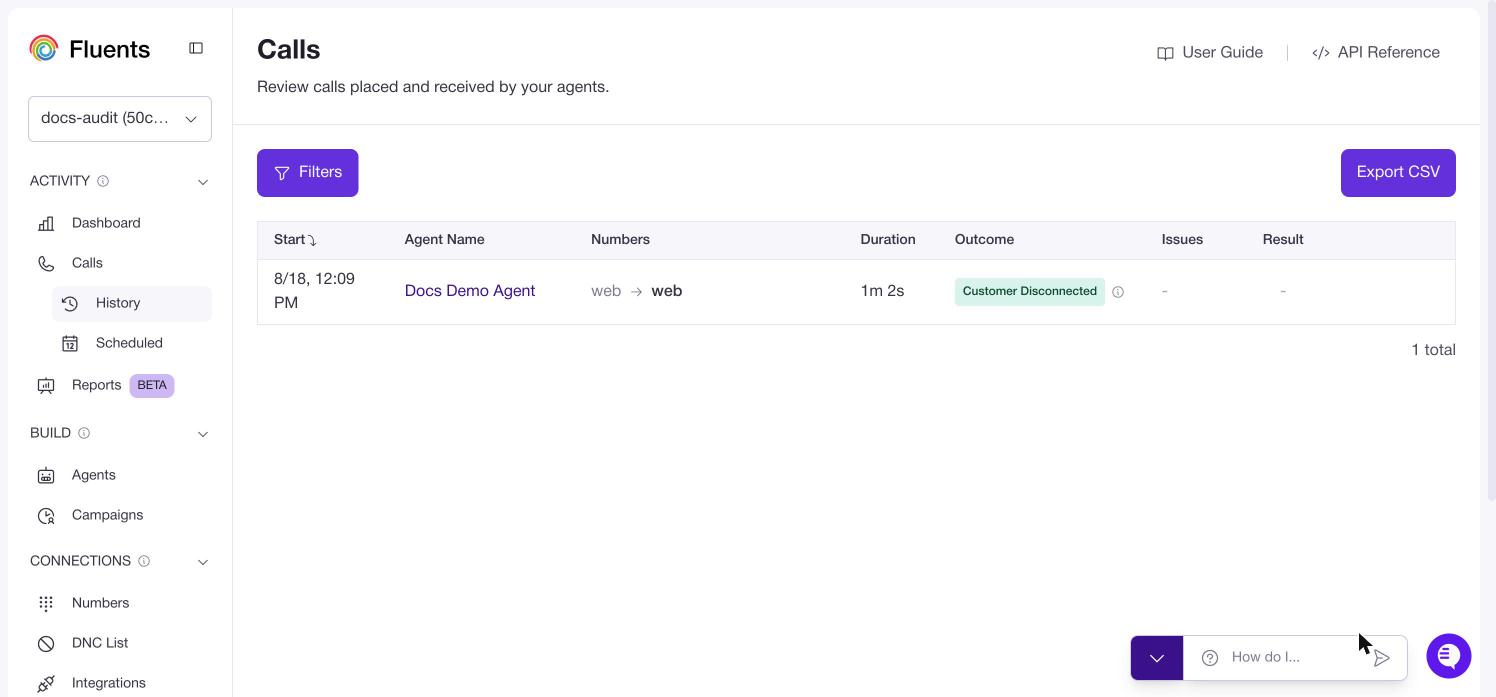
Outcome
Outcome answers “how did this call end”.
Select the information icon next to an outcome to see the specific reason, for
example Voicemail Detection Hangup.
Issues
Issues flags calls worth a second look. A call is flagged when it recorded an error, when an action the agent ran returned an error, or when the agent was slow to respond. Response time is graded in two bands. Above 2 seconds is a warning. Above 5 seconds is an error, because delays that long are noticeable to the person on the call. A dash means nothing was detected.Result
Result is the pass or fail judgement for the call. It stays empty until you set up Result Conditions on the agent’s Post-Call tab.
If a call matches both sets of conditions, it counts as Unsuccessful.
Opening a call
Select any row to open Call Overview.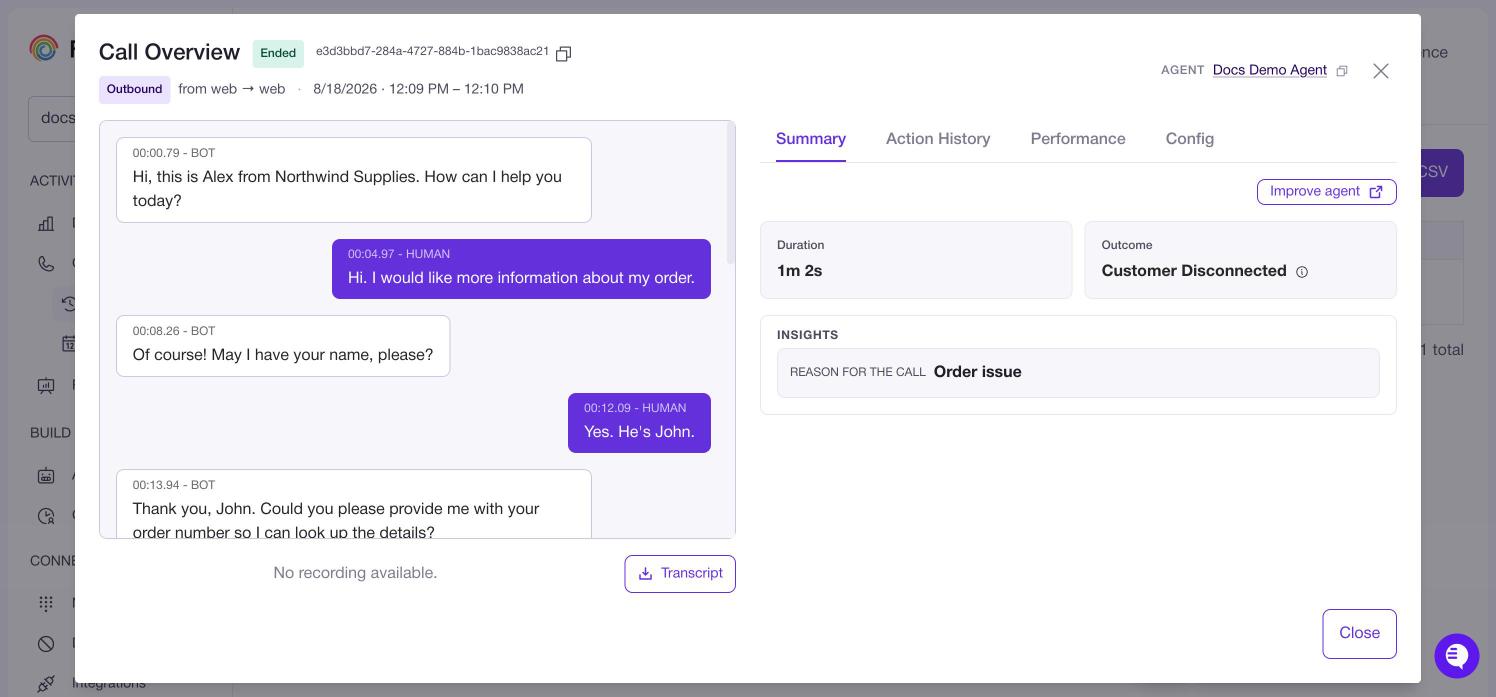
- Create test from call turns this conversation into a test case on the agent’s Test tab.
- Improve agent opens the agent’s Train your agent panel with this call’s transcript loaded, so you can turn what went wrong into prompt changes. See Improve an agent from a call.
Filtering call history
Select Filters to open the filter panel. Filters combine, so you can narrow by several at once.Status values
Not started, In progress, Voicemail, Is not voicemail, Error, and Ended. Is not voicemail excludes machine-answered calls in one step, which is usually what you want when reviewing outbound results.Filtering by Call Insights
Select Add Row, choose an insight, choose an operator, then enter the value to match. Each extra row narrows the list further, so a call has to match all of them. Use this for questions like “show me every call where the caller asked for a refund”.Filtering by Call Context
Select Add Row and enter a Key and Value. This searches the context you passed into the call, such as a customer ID or an order number, so it is the fastest way to find every call tied to one record in your own system.Exporting to CSV
Apply your filters first, then select Export CSV. The export always reflects the filters currently applied, so narrow the list before exporting rather than exporting everything and cutting it down afterwards. You choose which columns to include: ID, Agent, Agent Name, Call Context, Transcript, Start Time, End Time, Duration (s), From Number, To Number, Status, Result, Insights, Call SID, Account SID, Stream SID, Encoding, Provider. You can drag the headers to change the order they appear in. Choose how you want the file. Download CSV is capped at 1,000 calls. Send by email handles far more, up to 100,000 calls, so use it for anything larger. Turn on Expand Insights to give each insight its own column rather than packing them all into one field. Do that if the file is going into a spreadsheet or a reporting tool.In a HIPAA-enabled environment, Transcript and Insights are not available
as export columns.
Useful combinations
- Real conversations only. Status Is not voicemail, plus duration greater than 30 seconds. This removes unanswered and machine-answered calls.
- Calls to review. Filter Result to Unsuccessful, or scan the Issues column.
- One customer’s history. Use Contact Number, or Call Context with your own record ID.
- Campaign review. Use Campaign, plus Call Insights for the outcome you care about.
Scheduled calls
Open the Scheduled tab to see calls that have not happened yet. They come from two places: callbacks an agent agreed to during a conversation, and calls queued by a campaign.
Campaign calls are labelled by their place in the sequence, starting with Initial
Call, then Follow-up Call #1 and so on. Callbacks an agent arranged are
labelled Callback.
Status values
Filtering
The Scheduled tab has its own filters for Agents, Campaigns, Statuses, whether the call came from a callback or a campaign, and a date range. There is no CSV export on this tab.Callbacks only appear here if the agent has the Call Back Later skill enabled.
Where to go next
- Set up what your agent extracts and how calls are judged in Agents, Post-Call.
- Change providers, recording, and call duration in Agents, Advanced Settings.
- See how campaigns generate the calls that land here in Campaigns.