- Browse all voices available to your account
- Search and filter voices
- Test (preview) how a voice sounds
- Import new voices from connected providers
- Edit or delete imported voices
Voices (Core Concept). On this page:
- Browse and search voices
- Test (preview) a voice
- Import voices from a provider
- Edit or delete an imported voice
- Where to go next
Browse and search voices
To open the list of voices:- In the left-hand sidebar, click Voices.
- Name – The display name of the voice.
- Provider – Which voice provider or engine the voice comes from.
- Source / created by – Whether the voice is provided by Fluents.ai or was imported/created by your account.
- Search by name – Type part of the voice name to quickly find it.
- Filter by provider – Show only voices from a specific provider (where applicable).
- Filter by source – For example, filter to show only voices you imported.
- Quickly find a known voice by name.
- Explore voices from a particular provider.
- Focus on the custom voices your team has added.
Test (preview) a voice
Before assigning a voice to an agent, you should listen to how it sounds. To preview a voice:- In the Voices list, locate the voice you want to test.
- Click the Play / Preview button next to that voice.
- Listen to the sample audio.
- Hear a default sample sentence, or
- Be able to enter a short custom phrase to preview.
- Test a sentence similar to what your agent will say, such as your greeting or brand introduction.
- Compare several voices side by side to choose the one that best matches your use case (after-hours, sales, support, etc.).
Import voices from a provider
If you’ve connected external text-to-speech providers, you can import voices from those accounts.1. Connect a provider (once per account)
Before importing, you must add provider credentials:- Go to Providers in the sidebar.
- Select the voice provider you want to use.
- Enter the required API key / credentials.
- Save.
Providers Feature Guide.
2. Import voices in the Voices page
Once a provider is connected:- Go to Voices.
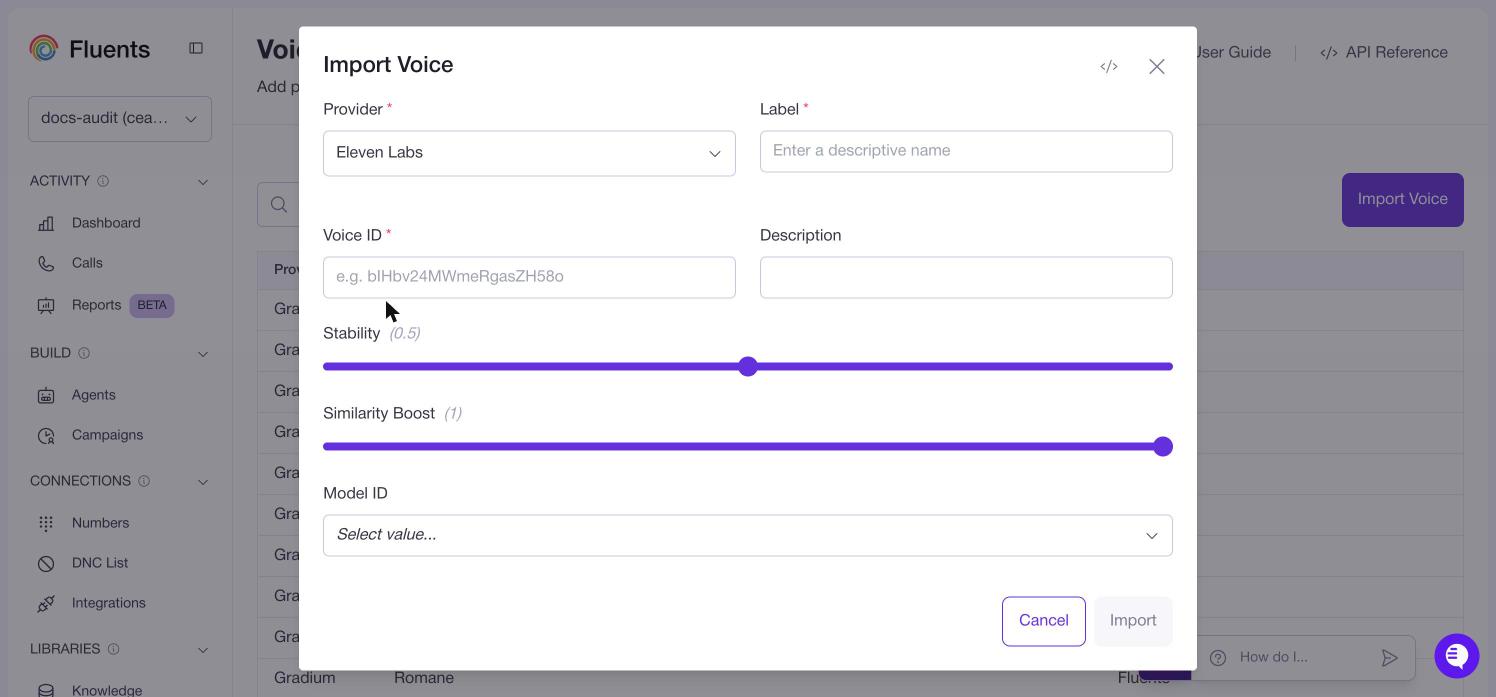
- Click Import voice.
- Choose the provider you want to import from.
- Follow the prompts to select or configure the voice:
- Depending on the provider, you may need to supply provider-specific settings (for example, a voice ID, model name, or other options).
- Confirm to import.
- The new voice appears in your Voices list.
- You can search, preview, and assign it to agents like any other voice.
- You already have custom voices with a provider.
- You want access to voices beyond the built-in Fluents.ai catalog.
Edit or delete an imported voice
For voices you’ve imported, you can usually edit or delete them. To edit an imported voice:- In the Voices table, open the actions menu (for example, the three-dot menu) next to the voice.
- Choose Edit.
- Adjust any allowed settings:
- This may include provider-specific options (for example, updating a voice ID or configuration).
- Save.
- Open the voice’s actions menu.
- Choose Delete.
- Confirm the deletion.
Existing agents that already use that voice may need to be updated to use a different voice, depending on your configuration.
Where to go next
-
Learn how voices shape agent behavior and identity in
Voices (Core Concept). -
See how to select a voice for a specific agent in the
Agent Feature Guide. -
Configure providers and API keys used for voice imports in the
Providers Feature Guide.