Numbers are the phone lines your agents use to send and receive calls.
This page shows you how to add, tag, and manage numbers in the dashboard.
If you’re not yet familiar with how numbers fit into agents and campaigns, start with the
Core Concept: Numbers.

Numbers page overview

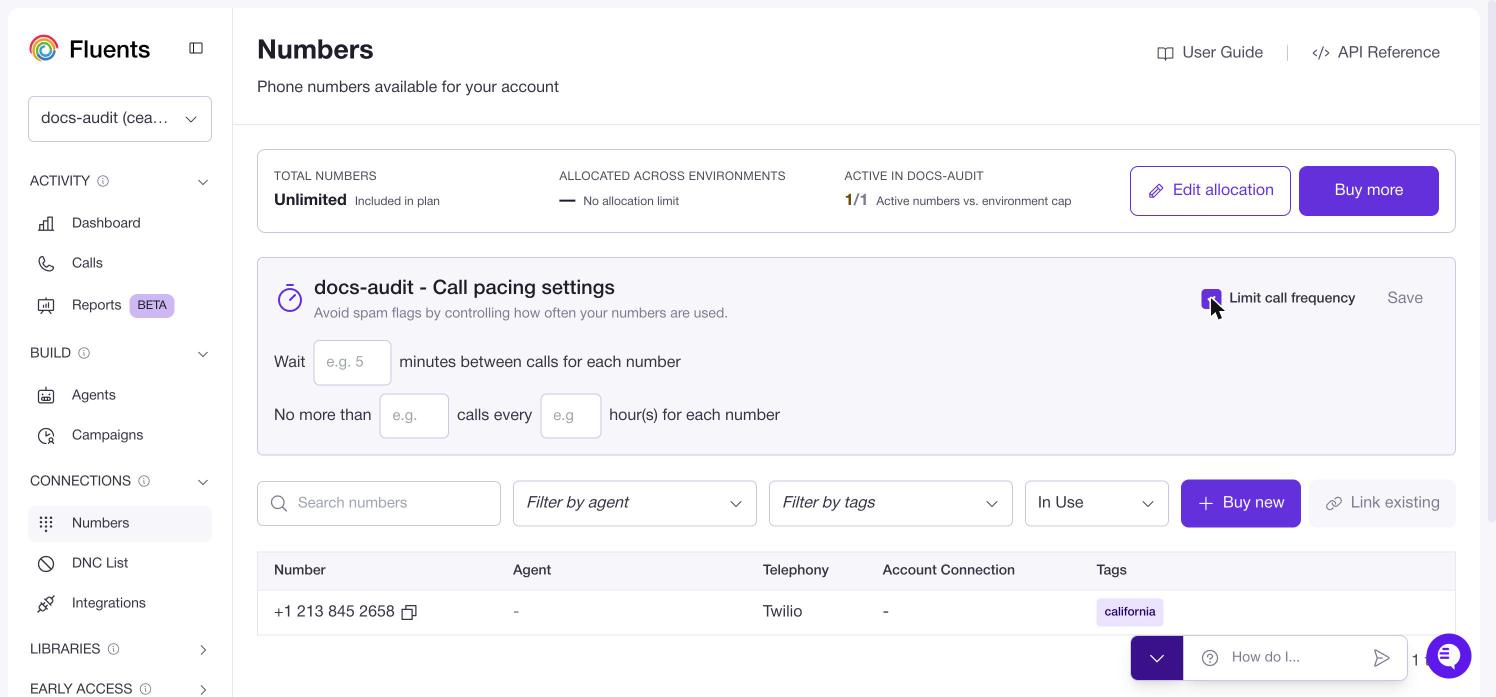
Go to Numbers in the left sidebar to see all phone numbers available for your account. You’ll see, for each number:
  • ID – Internal identifier for the number.
  • Number – The phone number itself.
  • Agent – The inbound agent assigned to this number (if any).
  • Telephony Provider – e.g. Twilio, Telnyx, or a Fluents‑managed provider.
  • Account Connection – Which provider account this number belongs to.
  • Tags – Any tags used to group this number.
At the top of the page you can:
  • Search numbers by typing digits into the search bar.
  • Filter by tags to only see numbers with specific tags.
These tools make it easier to find the right number when assigning agents or configuring campaigns.

Prerequisites

Before you add numbers, check:
  • Telephony provider connection To buy or link numbers with your own provider (e.g. Twilio, Telnyx), you must first connect it in
    Providers → see Providers.
  • Plan limits (Fluents‑managed numbers) If you buy numbers using Fluents‑managed credentials, your plan may limit how many numbers you can have.
    If you click New and you’re already at the limit, the modal will show an error instead of adding the number.
There is no Fluents‑side limit when you use your own provider accounts.

Buy a new number (New)

Use New when you want to buy a fresh number from a provider’s inventory directly inside Fluents.
  1. Go to Numbers.
  2. Click New (top‑right).
  3. In the New Number modal, fill in:
    • Provider
      Choose the telephony provider you want to buy the number from (for example, Twilio).
    • Account Connection
      Select the specific provider account to use.
      If you don’t see any options, you may need to first connect the provider under Providers.
    • Number
      Open the dropdown to see available numbers from that provider.
      • Use the Search… field to narrow by digits (for example, type +1415 to find numbers starting with +1 415).
      • Click the number you want to use.
    • Inbound Agent (optional)
      Select an inbound agent if this number should immediately start receiving calls for that agent.
      You can also leave this blank and assign an agent later.
    • Tags (optional)
      Start typing to search existing tags or create new ones.
      Press Enter to add each tag (for example, sales-us, after-hours, texas).
  4. Click Add Number.
If successful, the number appears in the Numbers list and can be used for inbound agents and campaigns. If you are using Fluents‑managed numbers and have reached your plan limit, you’ll see an error instead of the number being added.
Use Link Existing when you already own a number with a provider and want Fluents to use it. Before you start:
  • Make sure the provider account is connected in Providers.
  • Buy or assign the number on your provider’s website first (Twilio, Telnyx, etc.).
Then:
  1. Go to Numbers.
  2. Click Link Existing (top‑right).
  3. In the New Number (linking) modal, fill in:
    • Provider
      Choose the provider that owns this number.
    • Account Connection
      Select the specific connected account where the number lives.
    • Number
      Enter the phone number you already own (in full international format, e.g. +14151234567),
      or select it from the provider’s options if your UI shows a dropdown.
    • Inbound Agent (optional)
      Choose the inbound agent that should answer calls to this number, or leave blank for now.
    • Tags (optional)
      Add any tags you’ll use later to group or target this number (for example, texas, clinic-a).
  4. Click Add Number (or Link Number, depending on your UI).
The number is now visible in Fluents and can be assigned to agents and used in campaigns.
The number continues to be owned and billed by your telephony provider.

Add or edit tags on a number

Tags help you group numbers for routing and campaigns (for example, “texas”, “sales-us”, “after-hours”). You can add or change tags:
  • When creating or linking a number
    Use the Tags field in the New Number modal:
    • Start typing to see matching existing tags.
    • Press Enter to create a new tag if it doesn’t exist.
    • You can add multiple tags to the same number.
  • For an existing number
    1. Go to Numbers.
    2. On the row of the number you want to change, click the menu on the right.
    3. Click Edit.
    4. In the Tags field:
      • Add tags by typing and pressing Enter.
      • Remove tags by clicking the x on each tag.
    5. Click Save (or the equivalent button).
Tags are free‑form and can be added or removed at any time.
They’re especially useful when choosing caller IDs for Campaigns.

Assign or change the inbound agent for a number

To change which agent answers calls for a number:
  1. Go to Numbers.
  2. On the row of the number you want to update, click the menu on the right.
  3. Click Edit.
  4. In the Inbound Agent field:
    • Choose the agent that should receive inbound calls to this number, or
    • Clear the value if you don’t want any agent assigned yet.
  5. Update tags if needed.
  6. Click Save.
You can:
  • Assign one number to one agent.
  • Assign multiple numbers to the same agent (for example, local numbers in different regions that all route to one agent).

Detach or delete a number

From the menu on each number row, you’ll see:
  • Edit – Change the inbound agent and tags.
  • Detach – Unlink the number from Fluents.
  • Delete – Permanently remove the number and release it at the provider.

Detach a number

Use Detach when you want to stop using a number in Fluents,
but keep it active at your telephony provider.
  1. Go to Numbers.
  2. On the number row, click Detach.
  3. Confirm the action.
Result:
  • The number is removed from your Fluents workspace.
  • The number still exists in your provider account, and you can continue to manage or re‑link it later.

Delete a number

Use Delete with care. This permanently removes the number.
  1. Go to Numbers.
  2. On the number row, click Delete.
  3. Read the confirmation text and confirm.
Result:
  • The number is removed from Fluents.
  • Fluents asks the underlying provider to release the number, which typically also stops billing for it.
Warning
Deleting a number is permanent and may release it at your telephony provider.
Only delete numbers you are sure you no longer need.
If you only want to pause usage in Fluents but keep the number at your provider, prefer Detach instead of Delete.

Next steps