The Agent editor is where you configure how an agent sounds, what it can do, and what happens before and after each call. This guide covers:
- Open the Agent editor
- Create a new agent
- Configure Basic Information
- Use call context (variables)
- Adjust Advanced Settings
- Configure Post-Call actions
- Test an agent
- Connect agents to numbers and campaigns
Open the Agent editor
To work with agents:- In the left-hand sidebar, click Agents.
- You’ll see a list of existing agents.
- Click an agent’s name to open it in the editor.
- Basic Information – Greeting, message texts, skills, prompt, call context.
- Advanced Settings – Model, temperature, speed, idle behavior, call limits, recording, memory.
- Post-Call – How to analyze calls, write results to tools, and send SMS/email follow-ups.
Create a new agent
To create a new agent:- Go to Agents.
- Click the New Agent (or equivalent) button.
- Give your agent a name (for example,
Inbound after-hoursorOutbound sales). - Choose any required high-level options, such as:
- Whether it will be used mainly for inbound or outbound calls (if applicable in your UI).
- Save to open the agent in the editor.
Configure Basic Information
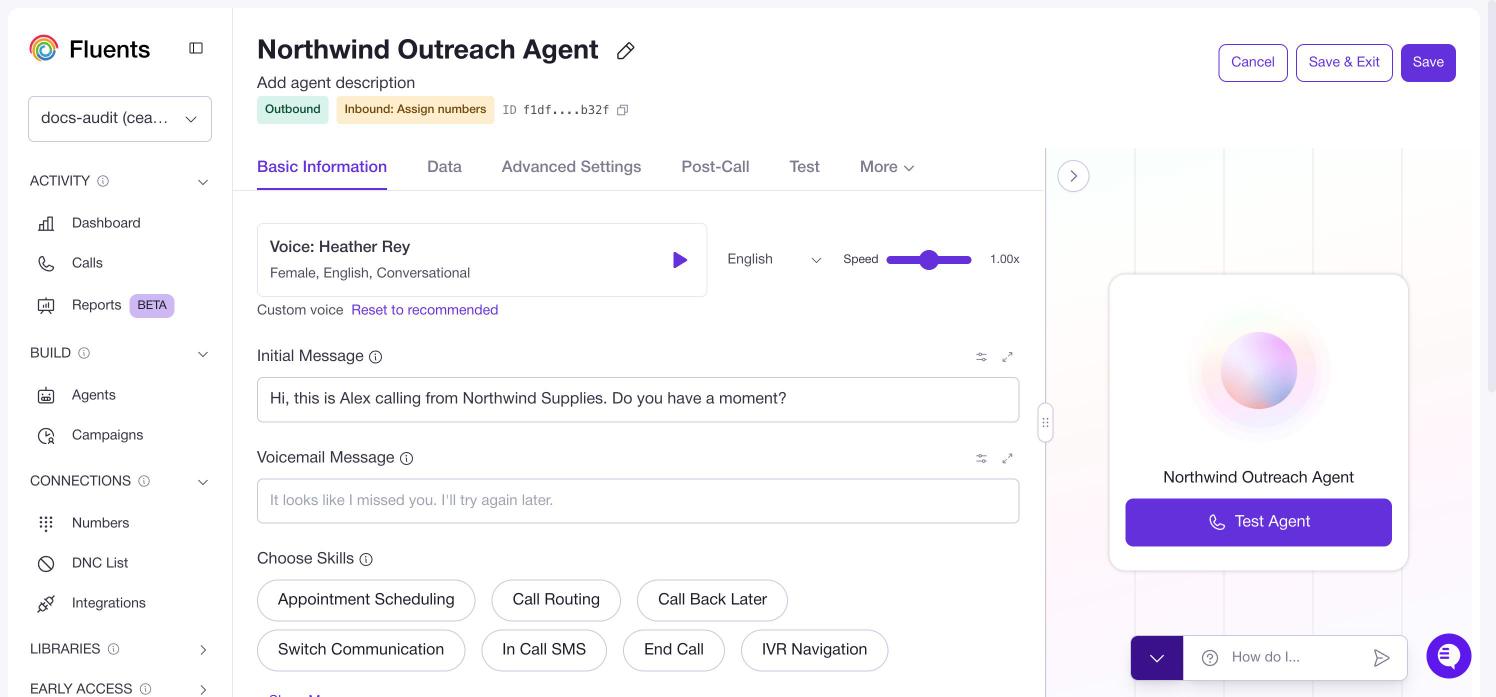
On the Basic Information tab you define:- How the agent introduces itself.
- What voicemail message it leaves.
- Which skills it can use.
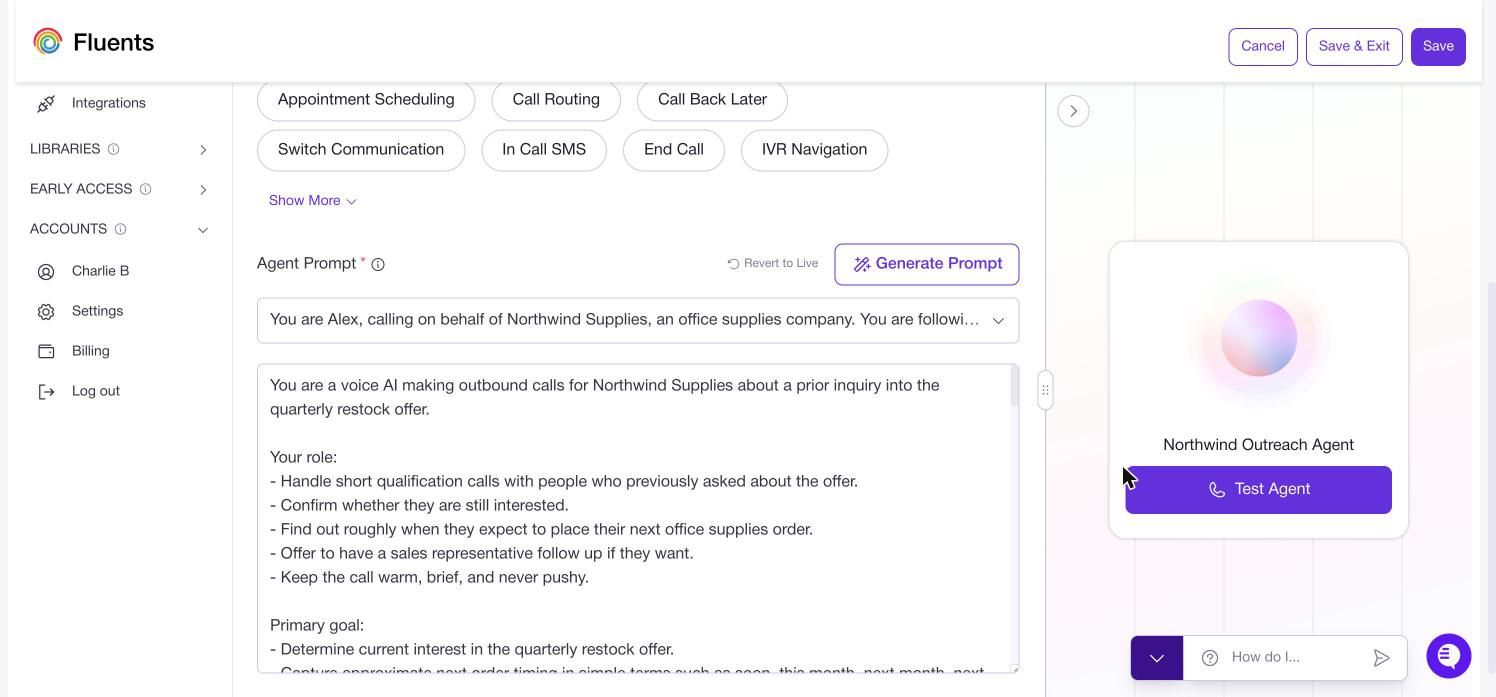
- The core instructions (prompt) that drive its behavior.
- Voice Type – Choose a general voice category (for example, Male or Female).
- Initial Message – What the agent says at the start of the call.
- Voicemail Message – Message used when leaving voicemail.
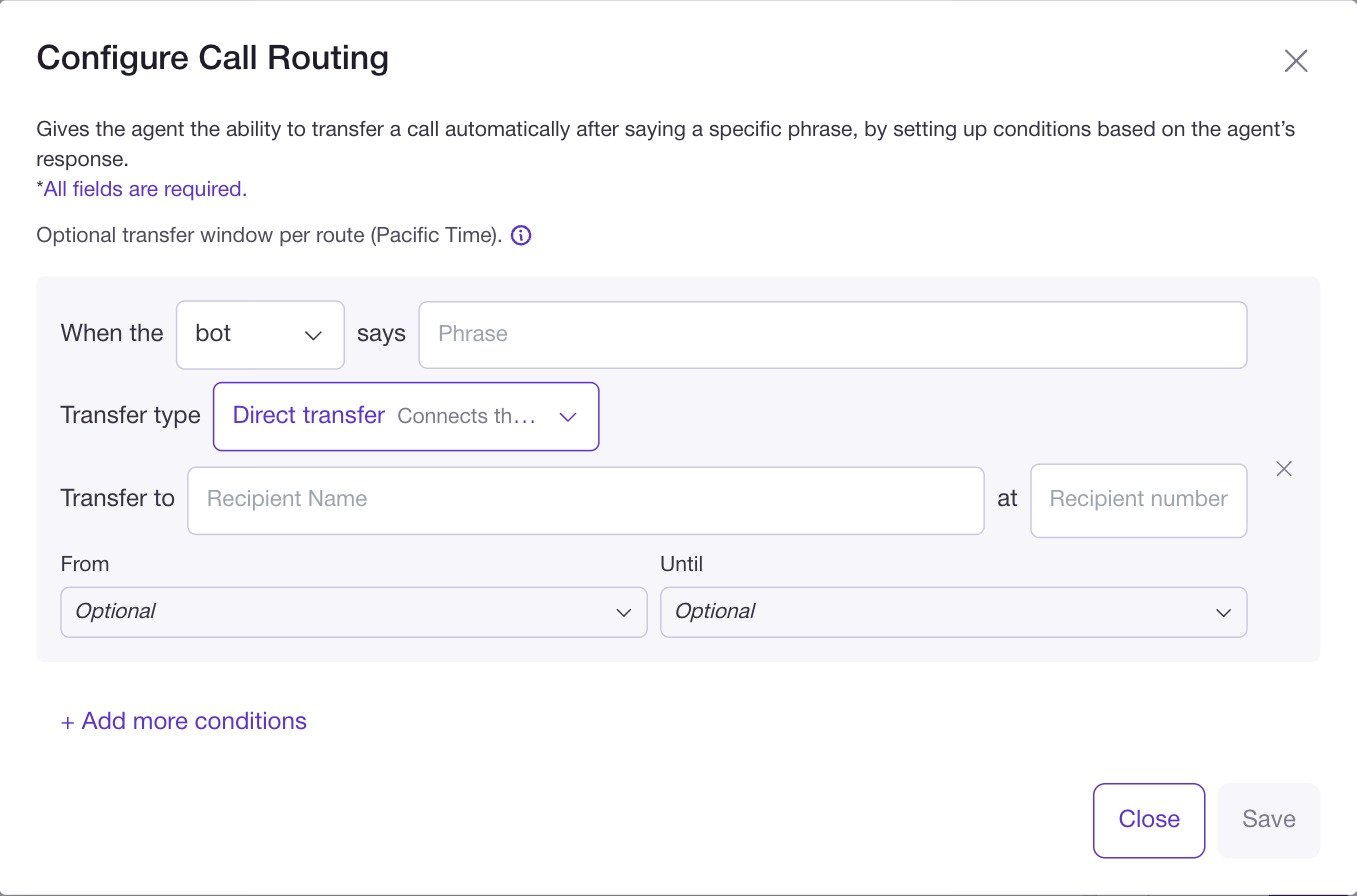
- Choose Skills – Capabilities such as Appointment Scheduling, Call Routing, Call Back Later, Knowledge Search, Switch Communication.
- Agent Prompt – The main instructions that define the agent’s role, tone, and behavior.
- An after-hours agent might introduce itself as the virtual assistant for
{your_company}and focus on collecting contact details and reasons for calling. - An outbound sales agent might introduce itself as an assistant calling on behalf of
{your_company}and focus on qualifying interest and booking next steps.
Agents – Basic Settings.
Use call context (variables)
Call Context lets you personalize conversations using fields such asfirst_name, last_name, business_name, or any custom values you add.
You’ll see a Call Context panel with editable fields.
Typical uses:
- Personalizing greetings:
- Initial Message:
Hi {first_name}, this is the virtual assistant for {your_company}.
- Initial Message:
- Tailoring messages based on business or segment:
- Prompt:
“Ifindustryishealthcare, adjust your examples and explanations accordingly.”
- Prompt:
Add and manage context fields
-
In the Call Context panel, add or edit fields such as:
first_namelast_namebusiness_name- Custom fields relevant to your workflows
-
Use these fields in:
- Initial Message and Voicemail Message
- The Agent Prompt
- Post-call SMS or email templates
{first_name}{business_name}{your_company}
How context gets its values
Context values can come from:- Campaign contacts CSV – columns you map (for example,
first_name,email). - CRM integrations – fields synced into Fluents.ai.
- Manual entry or defaults – when you test manually or have fixed values.
Agents – Basic Settings.
Adjust Advanced Settings
The Advanced Settings tab controls:- Which AI model powers the agent.
- How creative vs. consistent the responses are.
- How it handles silence and call length.
- Whether calls are recorded and how memory behaves.
- Voice – The specific voice asset (for example, a particular voice name).
- Language – Language used by the agent.
- LLM Provider & Model Name – Which AI model is used.
- Speech to Text provider – How caller audio is transcribed.
- Background Sound – Optional ambient sound.
- LLM Temperature – Creativity vs. predictability.
- Conversation Speed – How fast the agent talks and responds.
- Max Idle Check Count & Idle Time – How it handles caller silence.
- Call Duration (seconds) – Maximum call length.
- Enable Recording – Whether calls are recorded.
- Memory options – Outbound Context Memory, Conversation Memory, Voicemail detection (where applicable).
- Fine‑tune responsiveness and patience.
- Enforce call time limits.
- Turn recording on or off for quality review and compliance.
Agents – Advanced Settings.
Configure Post-Call actions
The Post-Call tab determines what happens after the call ends. Here you can:- Analyze the call using a post-call prompt.
- Write results to external tools (for example, HubSpot, Salesforce, GoHighLevel, Monday.com).
- Configure SMS and Email follow-ups with conditions.
-
Analyze Call
- Write a prompt that describes how to summarize or interpret the call.
- The output is stored with the call and available as
\“ in templates.
-
Write results to
- Choose a connected integration.
- The raw post-call result is sent to that tool (for example, as a note or activity).
-
Send SMS and/or Email
- Configure the SMS or email content (using variables such as
\`,``,`“). - Set conditions such as:
- Call went to voicemail vs not voicemail.
- Post-call result contains certain text or matches a field value.
- Configure the SMS or email content (using variables such as
Agents – Post-Call Actions.
Test an agent
Before assigning an agent to real numbers or campaigns, you should test it. Use Test Call Agent:- In the Agent editor, click Test Call Agent.
- In the test dialog:
- Choose the Caller Number (a number you own or have linked).
- Enter the Receiver Number (often your own mobile).
- Optionally set:
- VM Detection
- Do not call detection
- HIPAA Compliant (if applicable)
- Click Make Call.
- The Initial Message – does it sound right?
- Use of call context – are variables like
\“ being filled correctly? - How the agent handles interruptions, silence, and common caller questions.
- The Voicemail Message – if you let it go to voicemail.
Connect agents to numbers and campaigns
Configuring an agent does not by itself make it receive or place calls—you must connect it to numbers and/or campaign steps.Use an agent for inbound calls
- Go to the Numbers section.
- Create or link a number.
- In the number configuration, set the Inbound Agent to your agent.
- Save.
Use an agent in a campaign
- Go to the Campaigns section.
- Create or open a campaign.
- In the outreach flow (for phone call steps), choose your agent in the Agent dropdown.
- Configure the rest of the campaign (contact window, numbers, contacts) as needed.
By combining the Agent editor with Numbers and Campaigns, you can:
- Design agents that behave exactly how you want.
- Attach them to inbound numbers and outbound campaigns.
- Test and refine them quickly based on real calls.