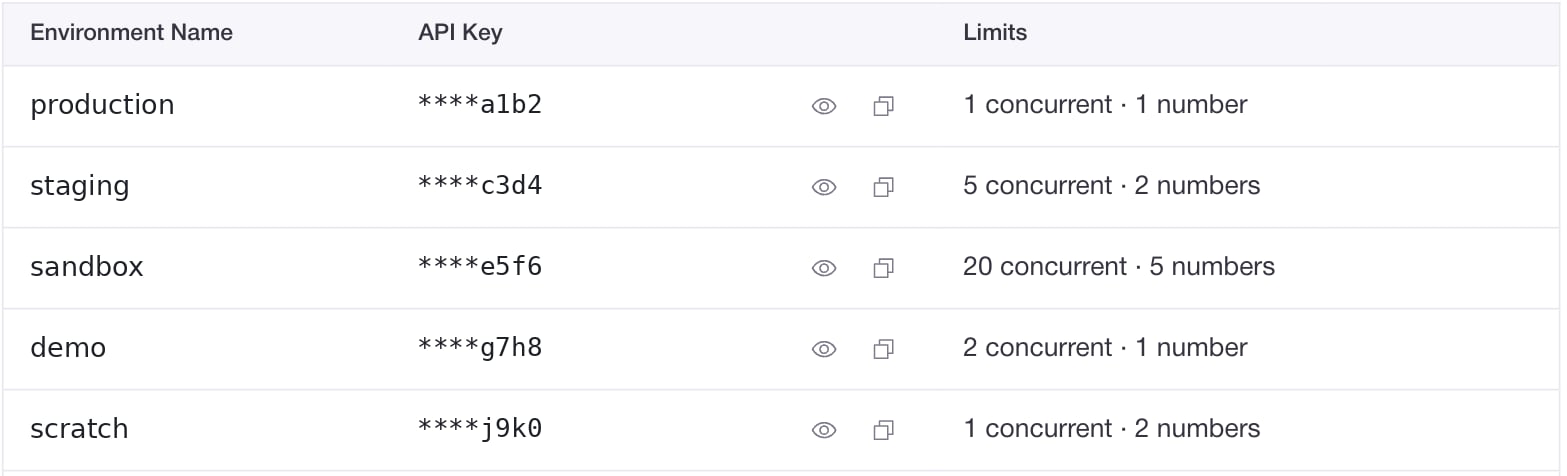
Each environment in Fluents.ai has its own API key. You’ll use this key when:
  • Calling the Fluents.ai HTTP API from your backend.
  • Connecting Fluents.ai to other tools that require direct API access.
There is:
  • One API key per environment.
  • No separate account‑wide key.
  • No self‑service regeneration today (the key is fixed unless changed by Fluents.ai support).
On this page:

Where to find your API key

  1. Open Settings
    • In the left‑hand sidebar of the Fluents.ai app, click Settings.
  2. Locate your environment
    • At the top of the Settings page, in the Environments section, find the row for the environment whose key you want (for example, default or production).
  3. Reveal and copy the key
    • In the API Key column:
      • Click the eye icon to reveal the key (if it is masked).
      • Click the copy icon to copy the key to your clipboard.
You now have the API key for that specific environment. Remember: if you switch environments (for example, from staging to production), the API key is different.

Choosing the right environment

Because API keys are per environment, always confirm:
  • Which environment you are working in (via the environment selector at the top of the app).
  • Which environment’s API key you are using in your code or integration.
Common patterns:
  • Use a staging or test environment key for development and QA.
  • Use a production environment key for live traffic.
This keeps test traffic and production traffic cleanly separated.

How to use the API key in requests

When calling the Fluents.ai API, you typically:
  • Include the API key in an Authorization header.
  • Use it from a server‑side environment (not directly from a browser or client app).
In most cases, your HTTP requests should include a header like:
  • Header name: Authorization
  • Header value: Bearer YOUR_API_KEY_HERE
For example (conceptually):
  • Authorization: Bearer sk_live_...
The exact authentication details and example requests are documented in the
API Authentication guide (see Where to go next below).

Security best practices

Treat your API key like a password for that environment:
  • Do not share it publicly or commit it to version control.
  • Do not embed it in client‑side code (browser JavaScript, mobile apps).
    Use it from your backend or a secure integration platform.
  • Store it in a secure secrets manager or environment variables (for example, in your server or CI/CD system).
If you ever suspect that an API key has been exposed:
  • Remove or disable the code or integration using that key.
  • Contact Fluents.ai support or your Fluents.ai representative to discuss rotation options for that environment.

Where to go next