

Set it up
On the agent’s Basic Information tab, click In Call Email under Choose Skills. First choose an Email Provider. The dialog shows whether the one you picked is Connected or Not Connected, and lets you connect it without leaving the page. See Google Workspace or Outlook. Then add one or more emails, using + Add email for each extra one. Each has four fields.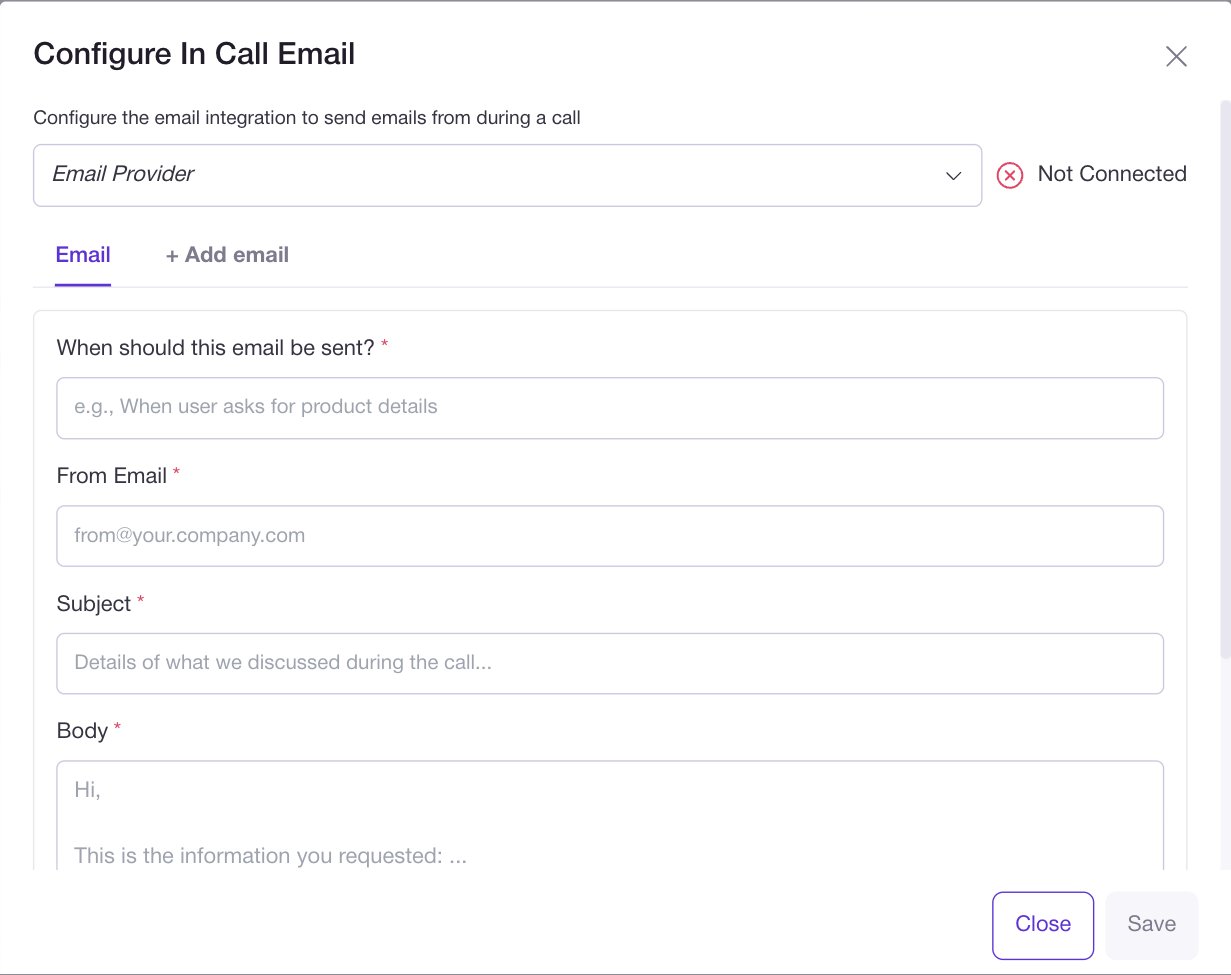
You can add several, each with its own trigger, and the agent picks the one whose
condition matches what happened on the call.
Writing the trigger
The trigger is read by the agent, not by a rules engine, so write it as a plain description of the situation. Something like “When user asks for product details”. The agent is told not to send anything unless a condition is met, and to use only the details from the email whose condition matched. So a badly separated pair of triggers is how you end up with the wrong email going out.Personalising the body
The body can include placeholders that are filled from the call’s context, so a prepared email can still carry the person’s name, an order number, or anything else you passed into the call.The agent needs an address
The agent can only send if it has the person’s email address. On an inbound call it usually does not, so it will ask. If your flow depends on the email arriving, make sure the agent has a reason to have collected the address by that point.Where to go next
- Send a text instead, which needs no address: In Call SMS
- Send something after the call rather than during it: Post-call
- Everything else on the agent: Agents