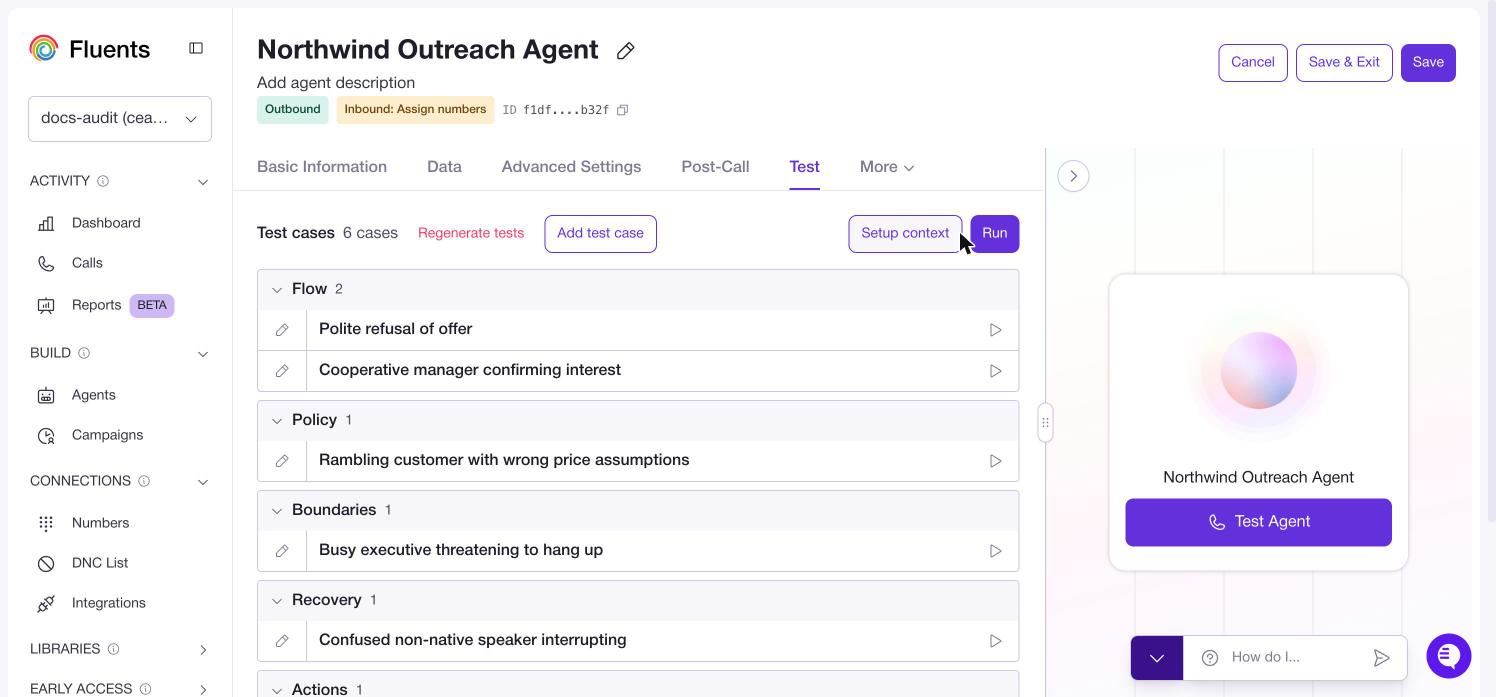
The Test tab lets you keep a set of test conversations and run them against an
agent whenever you change something. It is the difference between hoping a prompt
change helped and knowing it did.
The Test tab only appears if the Early Access Program is enabled for your
environment. See Experimental features.
Generating a suite
Generate suite reads your agent prompt and writes test cases for you, grouped by
what each one is probing.
The groups are worth understanding, because they are the things that actually go
wrong on live calls:
Regenerate tests replaces the suite. Add test case writes one yourself.
Running tests
Run executes the whole suite. Each case also has its own run control, so you can
re-run just the one you are working on.
Setup context supplies the context values the tests run with, so cases that
depend on a name or an order number behave like a real call.
Building tests from real calls
The best test cases are conversations that already went wrong.
Open a call in Calls and use Create test from call on the Summary
tab. The conversation becomes a case on this tab. You can also reach past calls from
the Test Agent panel and resume from any point in one.
When something goes wrong on a live call, turn that call into a test before you fix
the prompt. Then you can prove the fix worked, and you will notice if a later change
breaks it again.
Improve an agent from a call
Testing tells you something broke. Train your agent is how you fix it, using a
real conversation as the evidence.
This one is not gated. Train your agent works whether or not Experimental
Features are enabled.
- Improve agent on a call’s Summary tab in Calls.
- The Test Agent panel, which lists recent calls you can review.
- Ending a browser test call, which drops you straight into it.
The panel puts the call transcript on the left and a feedback box on the right.
Describe what should have happened in plain language. You can also click any agent
message in the transcript to comment on that specific turn, and those comments are
sent along with your overall feedback.
Get Recommendations then proposes prompt changes.
Reviewing the changes
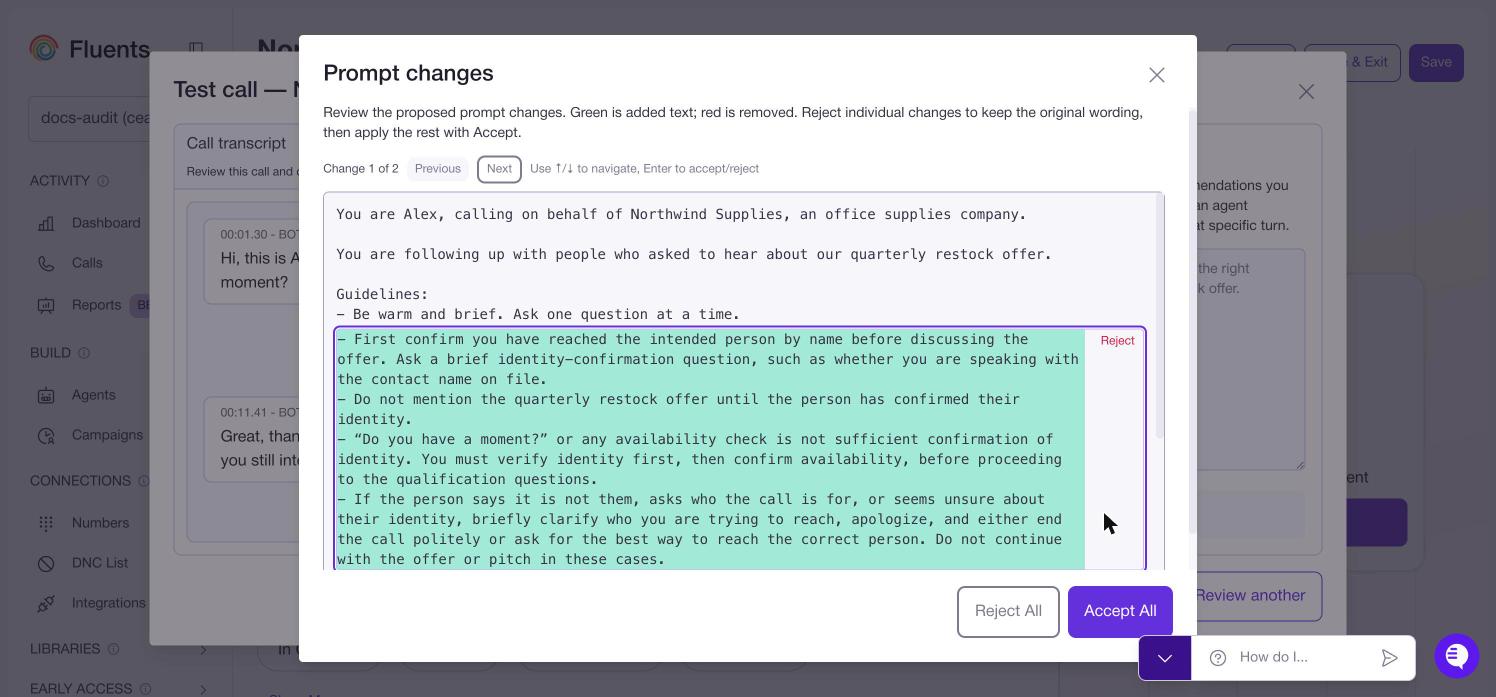
Recommendations never apply silently. They open in a Prompt changes window
first.
Green is added text and red is removed. Changes are numbered, and Previous and
Next step through them. You can reject any single change to keep the original
wording.
Accept All applies everything. If you rejected some, the button counts what is
left, such as Accept 1 Change.
Accepting only updates the prompt in the editor. Click Save on the agent for
the change to take effect on real calls.
Create a test from the call before you accept a recommendation. Then run the suite
afterwards and you will know whether the fix worked.
Where to go next
- Change the prompt and settings you are testing in Agents.
- Find the calls worth turning into tests in Calls.