

Zendesk Integration
The Fluents.ai Zendesk App embeds your Fluents voice AI agents directly inside Zendesk. Support teams get a unified view of every AI-handled call, can create tickets in one click, and can trigger outbound AI calls without leaving the ticket.Prerequisites
- A Zendesk account (Suite Team or above)
- A Fluents.ai account with at least one agent and one phone number configured
- Your Fluents API key — found in your Fluents dashboard under Settings → API Keys
Installation
1. Download the app
Download the latestfluents-zendesk-app.zip from the Fluents GitHub repository.
2. Open Zendesk Admin
Go to Admin Center → Apps and integrations → Apps → Zendesk Support Apps.3. Upload the app
Click Upload private app, select the.zip file, and click Upload.
4. Enter your API key
During installation, paste your Fluents API Key into theFluents API Key field.
The API key is stored securely via Zendesk’s encrypted app settings — it is never exposed to the browser.
5. Enable the app
Click Install. The app will appear in the Zendesk top navigation bar and in the ticket sidebar. Once installed, the app is available in two places:
No additional configuration is required. The app automatically loads your Fluents agents and phone numbers and fetches your most recent calls.
Call List & Filters
The Call List is the main view of the app. It shows your most recent 200 calls, paginated 10 per page, with a filter bar at the top.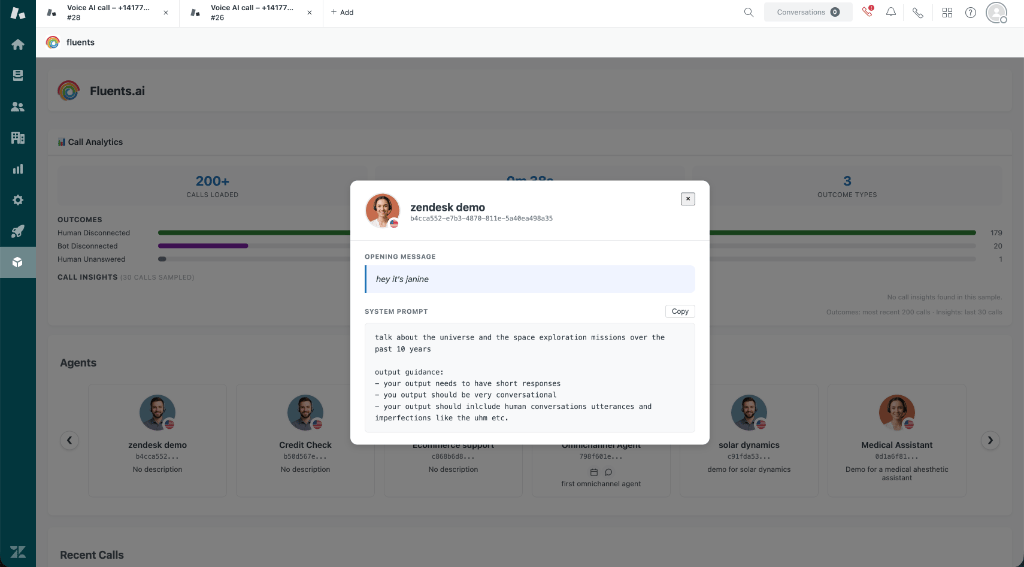
Filter bar
Filters apply automatically on change — changing the agent or date fields immediately reloads the list with no extra button click.
Call row
Each call in the list displays:
Clicking any row opens the full conversation transcript directly within Zendesk. The transcript panel shows the complete iMessage-style dialogue between the AI agent and the customer, along with the call outcome, phone numbers, and duration. From there, you can review the conversation and create a Zendesk ticket in one click — without ever leaving your Zendesk workspace.
Ticket references
When you create a ticket from a call, the ticket number is saved in browser local storage keyed to the call ID. This means:- The ticket reference persists across page reloads
- The create-ticket icon becomes greyed out to prevent accidentally creating duplicate tickets
- Each browser/device maintains its own references independently
Transcript Viewer
Clicking any call row opens the Transcript Modal — a full-screen overlay with the call conversation rendered as a chat.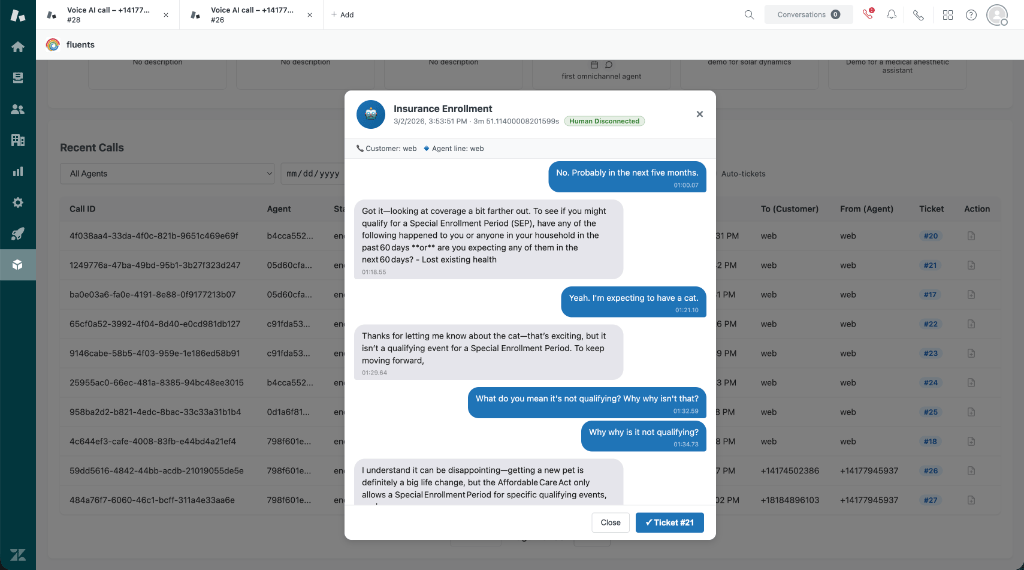
Header
Chat bubbles
The conversation is displayed as iMessage-style chat bubbles:
Timestamps embedded in the transcript are automatically stripped and displayed as faded captions below each message.
Create Ticket from transcript
The modal footer has a Create Ticket button that creates a Zendesk ticket pre-populated with:- Subject:
AI Call – {agent name} – {date} - Tags:
fluents-ai,ai-call, and the call outcome - Internal note: Full call transcript and a link to the call
Call Analytics
The Analytics Panel sits above the call list and loads automatically when the app opens.Outcome distribution
A horizontal bar chart shows the count of each call outcome across your most recent 200 calls:
Summary stat cards show: total calls loaded, average call duration, and the number of distinct outcome types.
Call Insights
Below the outcome chart, the app samples the 30 most recent calls and aggregates everycall_insights field. Each insight key is rendered as its own bar group showing the value distribution. The panel adapts dynamically to your account’s insight schema with no hardcoding.
Insights are sampled from the 30 most recent calls to keep the panel responsive. Analytics load once at app startup — reload the app to refresh.
Click-to-Call Sidebar
The Sidebar appears in the right-hand panel of any Zendesk ticket. It lets agents start an outbound AI call and view the ticket requester’s recent call history.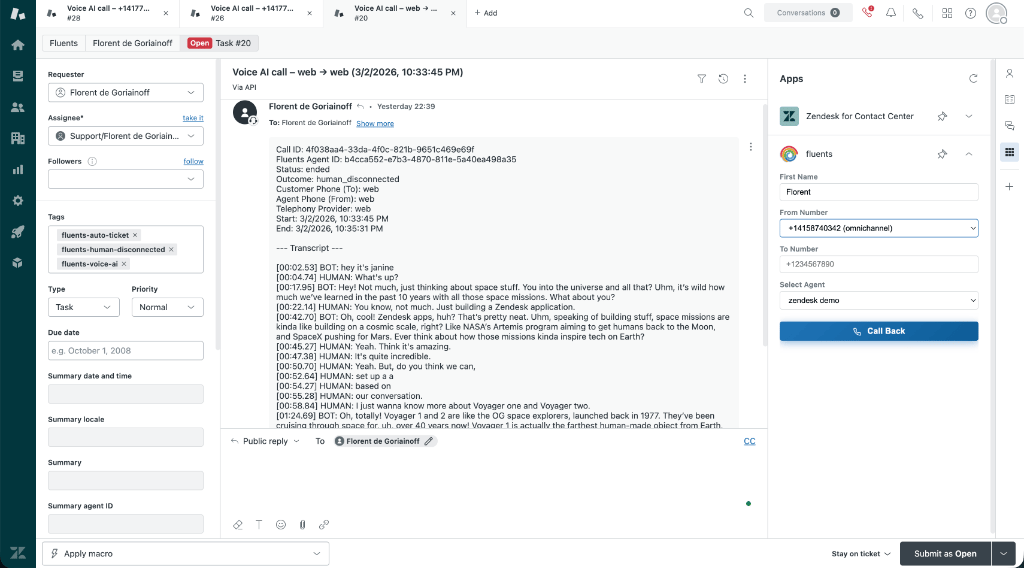
Starting a call
Select an agent and phone number, then click Start AI Call.
When a call is initiated from the sidebar, the ticket is automatically tagged with
fluents-ai and outbound-ai-call.
Requester call history
Below the call form, the sidebar shows the last 5 Fluents calls associated with the ticket requester’s phone number, including:- Call outcome badge
- Date, time, and duration
- Transcript preview (click to expand inline)
Auto-Ticket Creation
The Auto-Ticket feature polls your Fluents account every 60 seconds and automatically creates a Zendesk ticket for any recently completed call that doesn’t already have one.Enabling auto-tickets
Toggle the Auto-tickets switch in the call list filter bar. The toggle state is saved in browser local storage and survives page reloads. When enabled:- The app polls for new calls every 60 seconds
- Any call completed in the last 5 minutes without a local ticket reference is processed
- A Zendesk ticket is created automatically
- The ticket reference is saved so the same call is never processed twice
Ticket contents
If multiple agents use the app from different browsers, each browser tracks its own ticket references independently. Use a shared Zendesk view filtered by the
fluents-ai tag to avoid duplicate processing.Live Call Badge
The Live Call Badge is a pulsing animated indicator in the top-right of the app header.
The badge polls your Fluents account every 30 seconds and updates automatically. A call is considered live if its status from the Fluents API is
in_progress. This helps supervisors and team leads see at a glance that the AI is active.