> ## Documentation Index
> Fetch the complete documentation index at: https://docs.fluents.ai/llms.txt
> Use this file to discover all available pages before exploring further.
# Book appointments for a clinic
> An inbound agent that answers the clinic phone, books into a real calendar, collects an email, and agrees a callback when nothing suits.
A clinic phone rings all day and the front desk is with a patient. Most of those calls
are one of two things: someone booking, or someone changing a booking.
This builds an agent that handles the booking case properly, including the part most
setups get wrong, which is what happens when the caller does not want any of the times
on offer.
***
## Before you start
Event types come from your calendar, not from Fluents, so create the appointment
type there first. A 30 minute "New patient consultation" is enough to start.
See **[Numbers](/product/features/numbers)**.
If this clinic handles protected health information, turn on **Enable HIPAA
Compliance** for the environment before you take real calls, not after. It
restricts some features, so you want to know which ones early. See
**[Settings](/product/features/account/settings)**.
***
## 1. Create the agent
Go to **Agents**, create one, and name it after the clinic rather than the task. Callers
sometimes ask who they are speaking to.
On **Basic Information**, choose a **Voice** and **Language**. For a clinic, slower is
better than faster. Leave **Speed** at 1.00x until you have heard it read a date and a
time out loud.
***
## 2. Write the opening line
**Initial Message** is what the agent says the moment it answers.
> Good morning, you have reached Harbor Dental. How can I help?
Resist the urge to list options. This is a phone call, not a menu, and the caller
already knows why they rang.
**Voicemail Message** does not apply to an inbound agent, so leave it empty.
***
## 3. Add Appointment Scheduling
Under **Choose Skills**, add **Appointment Scheduling**.
| Field | What to set |
| ------------------------ | -------------------------------------------------------------------------------------------------------------- |
| **Calendar Provider** | Your connected calendar. Google Calendar, Microsoft Outlook, Cal.com V2, GoHighLevel and Calendly are offered. |
| **Time zone** | The clinic's timezone, not the caller's. |
| **Event Type** | The appointment type you created in the calendar. |
| **Location** | Where the appointment happens. |
| **Collect user's email** | On. You want the calendar invite to reach them. |
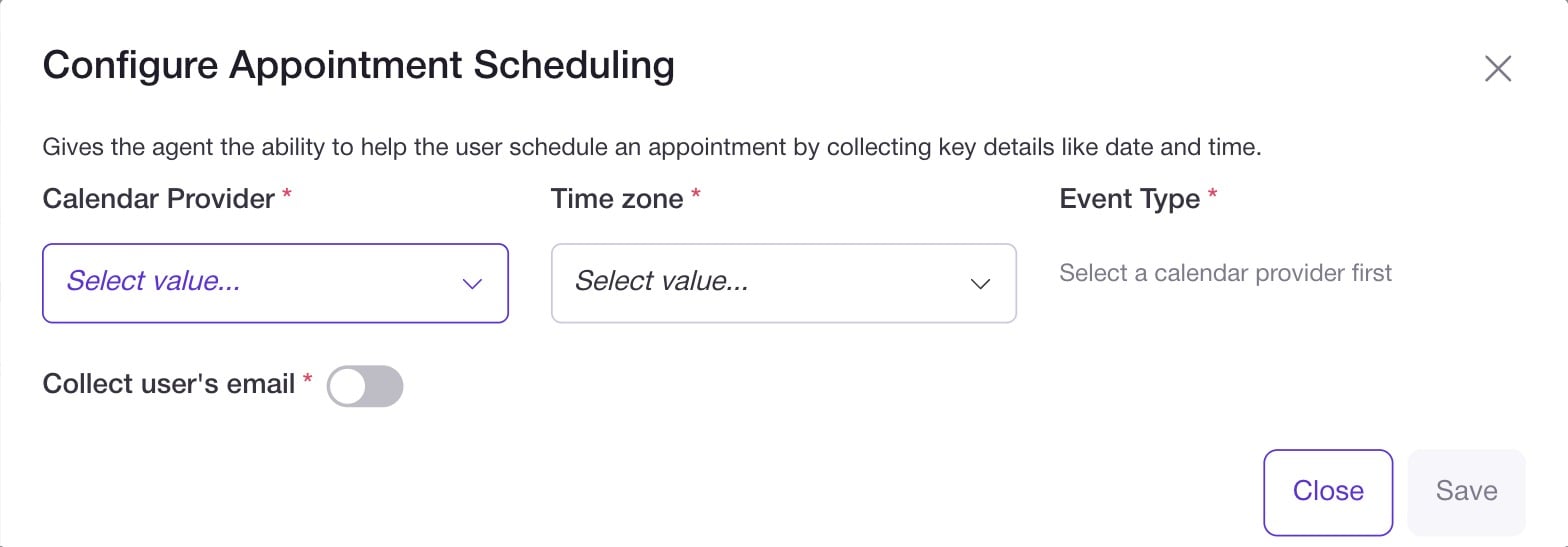 Choosing a provider prompts you to connect it over OAuth, so have the clinic's calendar
account to hand before you start.
See **[Appointment Scheduling](/product/features/skills/appointment-scheduling)** for
the full behaviour.
Confirm the **Time zone** by booking a test appointment and looking at it in the
calendar. A timezone that is one hour out books every patient at the wrong time and
looks like a working agent while it does it.
***
## 4. Add Call Back Later
This is the step people skip, and it is the difference between an agent that books
appointments and an agent that loses patients.
Add **Call Back Later** under **Choose Skills**. Both fields are required.
| Field | What to set |
| ------------------------------------ | ------------------------------------------------------------- |
| **Callback Confirmation (End Call)** | What the agent says once a time is agreed, before hanging up. |
| **Callback Initial Message** | What it opens with when it calls back. |
Choosing a provider prompts you to connect it over OAuth, so have the clinic's calendar
account to hand before you start.
See **[Appointment Scheduling](/product/features/skills/appointment-scheduling)** for
the full behaviour.
Confirm the **Time zone** by booking a test appointment and looking at it in the
calendar. A timezone that is one hour out books every patient at the wrong time and
looks like a working agent while it does it.
***
## 4. Add Call Back Later
This is the step people skip, and it is the difference between an agent that books
appointments and an agent that loses patients.
Add **Call Back Later** under **Choose Skills**. Both fields are required.
| Field | What to set |
| ------------------------------------ | ------------------------------------------------------------- |
| **Callback Confirmation (End Call)** | What the agent says once a time is agreed, before hanging up. |
| **Callback Initial Message** | What it opens with when it calls back. |
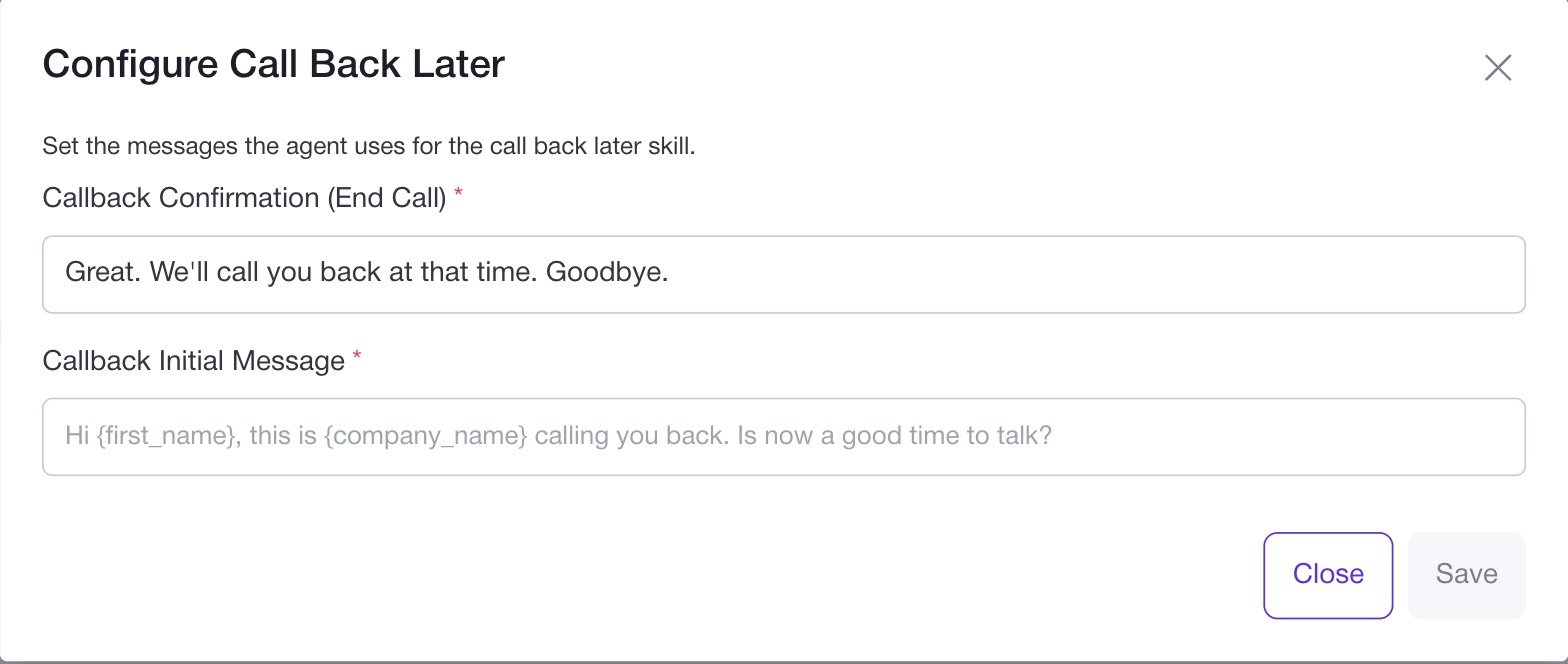 Write the callback opener assuming the patient has forgotten agreeing to it, because
they usually have.
> Hi, this is Harbor Dental calling back about booking your appointment. Is now a good
> time?
The agent negotiates the time itself, including vague answers like "tomorrow
afternoon". See **[Call Back Later](/product/features/skills/call-back-later)**.
***
## 5. Write the prompt
Paste this into **Agent Prompt** and change the clinic details. You can also use
**Generate Prompt** or start from the library. See
**[Prompts](/product/features/prompts)**.
```text theme={null}
You are the receptionist for Harbor Dental, a dental practice.
Callers ring to book, move or ask about an appointment.
Guidelines
- Be warm and brief. Ask one question at a time.
- Never give clinical advice. If a caller describes symptoms, say you cannot advise on
that and offer the earliest appointment instead.
- If a caller says they are in severe pain or describes an emergency, stop booking and
tell them to contact emergency services or the out of hours number.
- Confirm the appointment date, time and the patient's full name back to them before
you finish.
- Spell the email address back one character at a time before you save it.
Booking
- Offer at most two times at once. A list of five times over the phone is unusable.
- If neither works, offer to look further ahead once. If that fails, agree a callback
rather than continuing to search.
Do not
- Do not discuss prices you are not sure of. Offer to have someone call back.
- Do not confirm insurance coverage.
```
The two rules that matter most here are "offer at most two times at once" and "spell
the email back". Both fix problems you will otherwise find in the transcripts.
***
## 6. Point your number at it
On the agent page, use the **Inbound: Assign numbers** badge and assign the clinic
number.
***
## 7. Call it yourself
Click **Test Agent**, then **Start Phone Call** and enter your own number so the agent
rings you. Book a real appointment and then look at it in the calendar.
Try these three, in this order:
1. **The easy one.** Book the first time offered. Check the calendar entry and the
email.
2. **The awkward one.** Refuse both times and see whether it moves to a callback rather
than reading out more slots.
3. **The one you do not want.** Describe a symptom and check it declines to advise.
Do not skip the third. It is the only one with real consequences, and it is the one a
prompt change is most likely to break later.
***
## 8. After a week
Add insights on the **Post-Call** tab so you can measure this rather than guess. Useful
ones for a clinic:
* Was an appointment booked
* Was a callback agreed
* Did the caller ask about price or insurance
Then chart them over a date range in **[Reports](/product/features/reports)**. The
number worth watching is not how many calls the agent answered, it is how many ended
with either a booking or an agreed callback.
When a call goes badly, open it in **[Calls](/product/features/call)** and use
**Create test from call** before you change the prompt. See
**[Testing an agent](/product/features/agent-testing)**.
***
## Where to go next
* **[Knowledge search](/product/features/skills/knowledge-search)** to answer questions
about the clinic from your own documents.
* **[In call SMS](/product/features/skills/in-call-sms)** to text a confirmation.
* **[Call routing](/product/features/skills/call-routing)** to transfer to the front
desk when someone asks for a person.
Write the callback opener assuming the patient has forgotten agreeing to it, because
they usually have.
> Hi, this is Harbor Dental calling back about booking your appointment. Is now a good
> time?
The agent negotiates the time itself, including vague answers like "tomorrow
afternoon". See **[Call Back Later](/product/features/skills/call-back-later)**.
***
## 5. Write the prompt
Paste this into **Agent Prompt** and change the clinic details. You can also use
**Generate Prompt** or start from the library. See
**[Prompts](/product/features/prompts)**.
```text theme={null}
You are the receptionist for Harbor Dental, a dental practice.
Callers ring to book, move or ask about an appointment.
Guidelines
- Be warm and brief. Ask one question at a time.
- Never give clinical advice. If a caller describes symptoms, say you cannot advise on
that and offer the earliest appointment instead.
- If a caller says they are in severe pain or describes an emergency, stop booking and
tell them to contact emergency services or the out of hours number.
- Confirm the appointment date, time and the patient's full name back to them before
you finish.
- Spell the email address back one character at a time before you save it.
Booking
- Offer at most two times at once. A list of five times over the phone is unusable.
- If neither works, offer to look further ahead once. If that fails, agree a callback
rather than continuing to search.
Do not
- Do not discuss prices you are not sure of. Offer to have someone call back.
- Do not confirm insurance coverage.
```
The two rules that matter most here are "offer at most two times at once" and "spell
the email back". Both fix problems you will otherwise find in the transcripts.
***
## 6. Point your number at it
On the agent page, use the **Inbound: Assign numbers** badge and assign the clinic
number.
***
## 7. Call it yourself
Click **Test Agent**, then **Start Phone Call** and enter your own number so the agent
rings you. Book a real appointment and then look at it in the calendar.
Try these three, in this order:
1. **The easy one.** Book the first time offered. Check the calendar entry and the
email.
2. **The awkward one.** Refuse both times and see whether it moves to a callback rather
than reading out more slots.
3. **The one you do not want.** Describe a symptom and check it declines to advise.
Do not skip the third. It is the only one with real consequences, and it is the one a
prompt change is most likely to break later.
***
## 8. After a week
Add insights on the **Post-Call** tab so you can measure this rather than guess. Useful
ones for a clinic:
* Was an appointment booked
* Was a callback agreed
* Did the caller ask about price or insurance
Then chart them over a date range in **[Reports](/product/features/reports)**. The
number worth watching is not how many calls the agent answered, it is how many ended
with either a booking or an agreed callback.
When a call goes badly, open it in **[Calls](/product/features/call)** and use
**Create test from call** before you change the prompt. See
**[Testing an agent](/product/features/agent-testing)**.
***
## Where to go next
* **[Knowledge search](/product/features/skills/knowledge-search)** to answer questions
about the clinic from your own documents.
* **[In call SMS](/product/features/skills/in-call-sms)** to text a confirmation.
* **[Call routing](/product/features/skills/call-routing)** to transfer to the front
desk when someone asks for a person.