> ## Documentation Index
> Fetch the complete documentation index at: https://docs.fluents.ai/llms.txt
> Use this file to discover all available pages before exploring further.
# Improving an agent
> The loop that turns an agent that works into one you can rely on.
The quickstarts end with an agent that takes calls. This is what to do on day two.
Most people try to make an agent good by rewriting the prompt until it feels right.
That does not converge, because you have no way of knowing whether a change helped or
quietly broke something else.
There is a loop that does converge. It is six steps and you will run it many times.
**Before you start**, build something with
**[Your first inbound agent](./first-inbound-agent)** or
**[Your first outbound agent](./first-outbound-agent)**. This page assumes an agent
already exists.
***
## The loop
Place a call and try to make it fail.
Turn that call into a test case, before you fix anything.
Give feedback on the exact thing it said and let it rewrite the prompt.
Re-run the test. Now you know instead of hoping.
Add skills, so calls end somewhere useful.
Add insights, so real calls tell you what to fix next.
***
## 1. Break it
Open the agent and use **Test Agent** in the right hand panel.
**Start Browser Call** talks to it through your microphone with no phone number
involved. **Start Phone Call** asks for a number and rings you, which is the honest
test because phone audio is harder than browser audio.
Do not be polite. The useful calls are the awkward ones.
* Interrupt it mid sentence.
* Say something off topic.
* Say no, then change your mind.
* Ask a question the prompt never anticipated.
A call where everything went well teaches you nothing. You are looking for the moment
it says something you would not want a customer to hear.
***
## 2. Capture it, before you fix it
Open the call in **[Calls](/product/features/call)**. The **Summary** tab has both
halves of this loop on it.
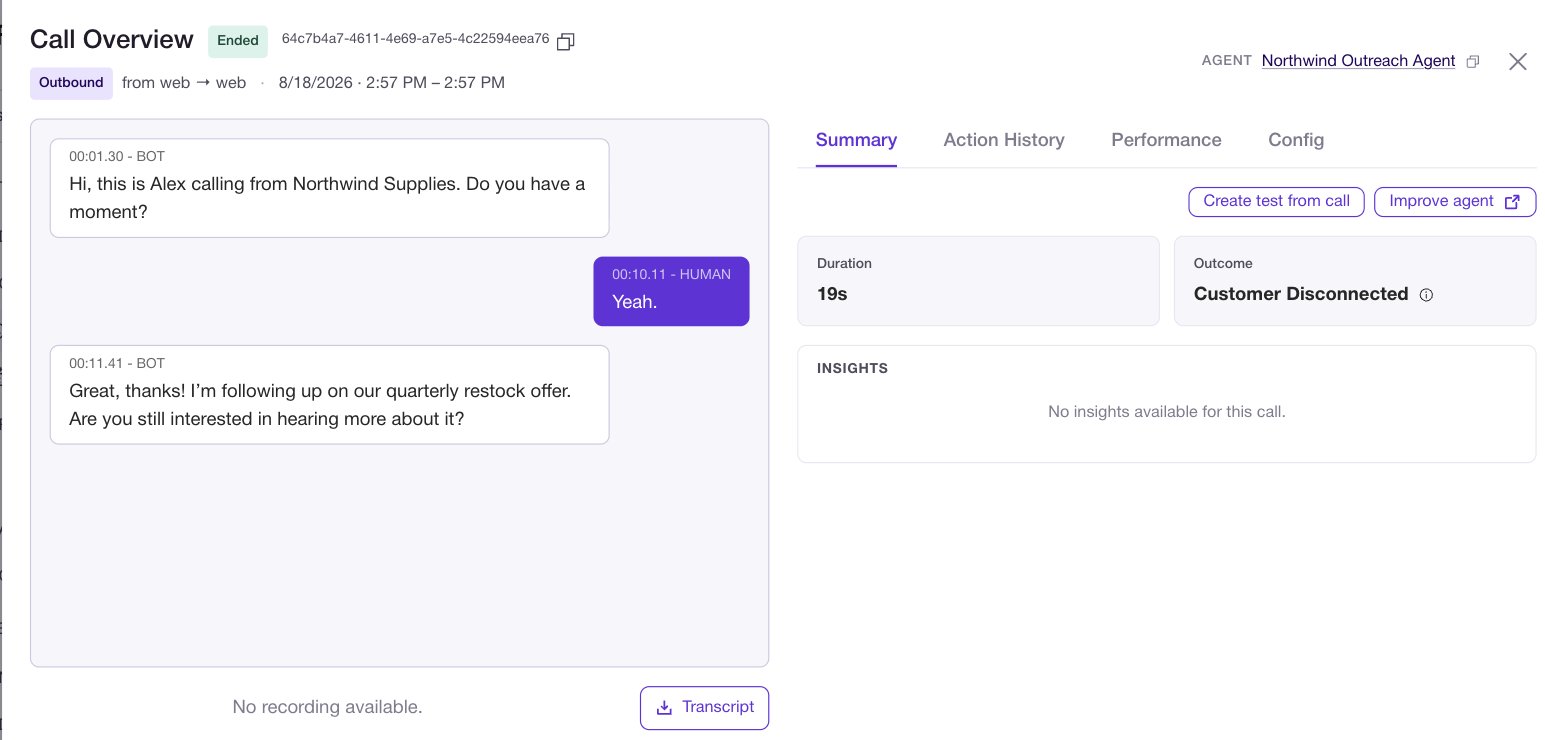 Click **Create test from call**. The conversation becomes a case on the agent's
**Test** tab.
Do this **first**, while the agent is still broken. If you fix the prompt and then try
to write a test, you are writing it from memory of a bug you no longer have, and you
cannot prove the fix worked.
The **Test** tab only appears if the **Early Access Program** is enabled for your
environment. See **[Early access](/product/features/experimental-feature)**.
**Improve agent** is not gated and works either way.
***
## 3. Fix it by talking, not typing
Still on the call, click **Improve agent**.
The transcript sits on the left and a feedback box on the right. You have two ways to
say what went wrong, and they combine:
* Describe it in plain language in the feedback box.
* Click the specific agent message that was wrong and comment on that turn.
The second one is the reason this works. "It should not have offered the discount
there" attached to the exact sentence is a far better instruction than any prompt edit
you would have typed.
Then click **Get Recommendations**.
### Review before you accept
Recommendations never apply silently. They open in a **Prompt changes** window with
green for added text and red for removed, numbered so you can step through them with
**Previous** and **Next**.
Click **Create test from call**. The conversation becomes a case on the agent's
**Test** tab.
Do this **first**, while the agent is still broken. If you fix the prompt and then try
to write a test, you are writing it from memory of a bug you no longer have, and you
cannot prove the fix worked.
The **Test** tab only appears if the **Early Access Program** is enabled for your
environment. See **[Early access](/product/features/experimental-feature)**.
**Improve agent** is not gated and works either way.
***
## 3. Fix it by talking, not typing
Still on the call, click **Improve agent**.
The transcript sits on the left and a feedback box on the right. You have two ways to
say what went wrong, and they combine:
* Describe it in plain language in the feedback box.
* Click the specific agent message that was wrong and comment on that turn.
The second one is the reason this works. "It should not have offered the discount
there" attached to the exact sentence is a far better instruction than any prompt edit
you would have typed.
Then click **Get Recommendations**.
### Review before you accept
Recommendations never apply silently. They open in a **Prompt changes** window with
green for added text and red for removed, numbered so you can step through them with
**Previous** and **Next**.
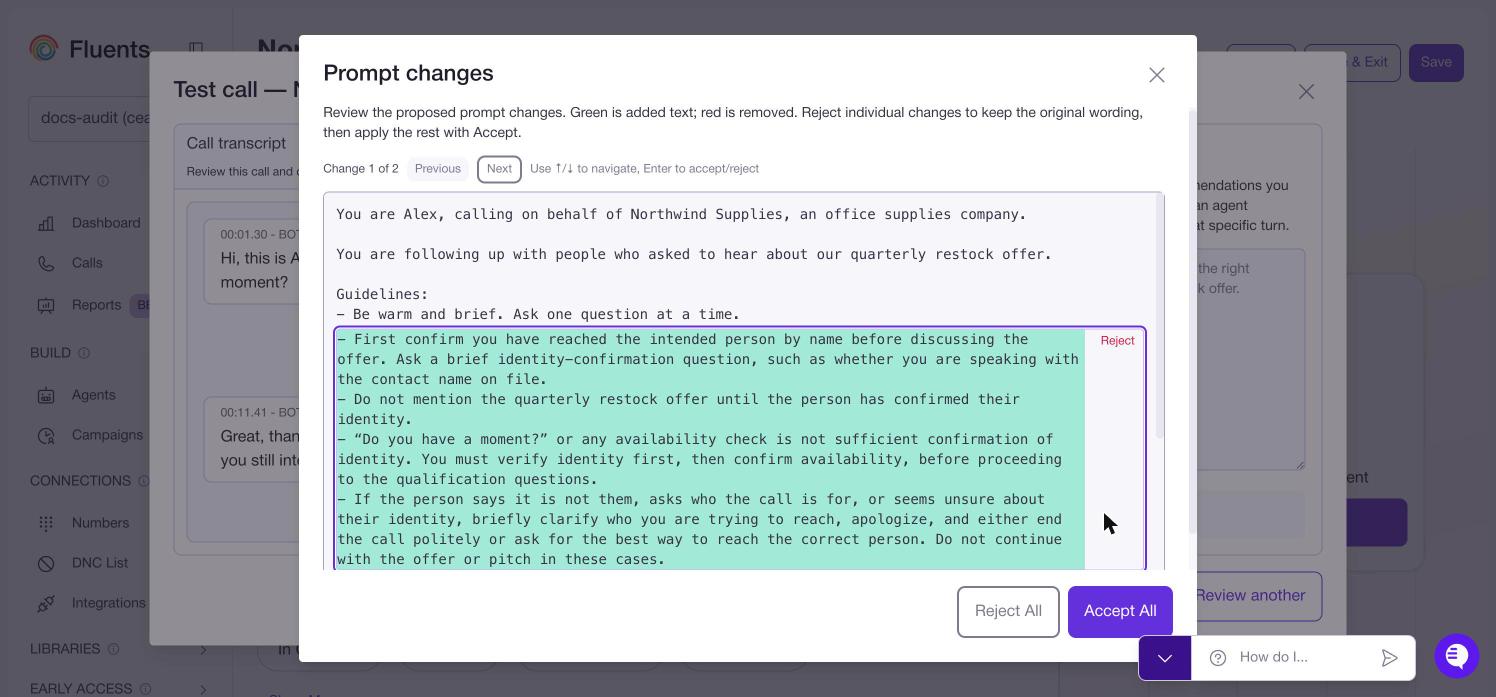 Reject any single change to keep your original wording. **Accept All** applies the
rest, and the button counts what is left if you rejected some.
Accepting only updates the prompt **in the editor**. Click **Save** on the agent or
the change never reaches a real call. This is the single most common way people
conclude the feature does not work.
***
## 4. Prove it
Go to the agent's **Test** tab.
If you have never used it, **Generate suite** reads your prompt and writes cases for
you, grouped by the five things that actually go wrong on calls.
Reject any single change to keep your original wording. **Accept All** applies the
rest, and the button counts what is left if you rejected some.
Accepting only updates the prompt **in the editor**. Click **Save** on the agent or
the change never reaches a real call. This is the single most common way people
conclude the feature does not work.
***
## 4. Prove it
Go to the agent's **Test** tab.
If you have never used it, **Generate suite** reads your prompt and writes cases for
you, grouped by the five things that actually go wrong on calls.
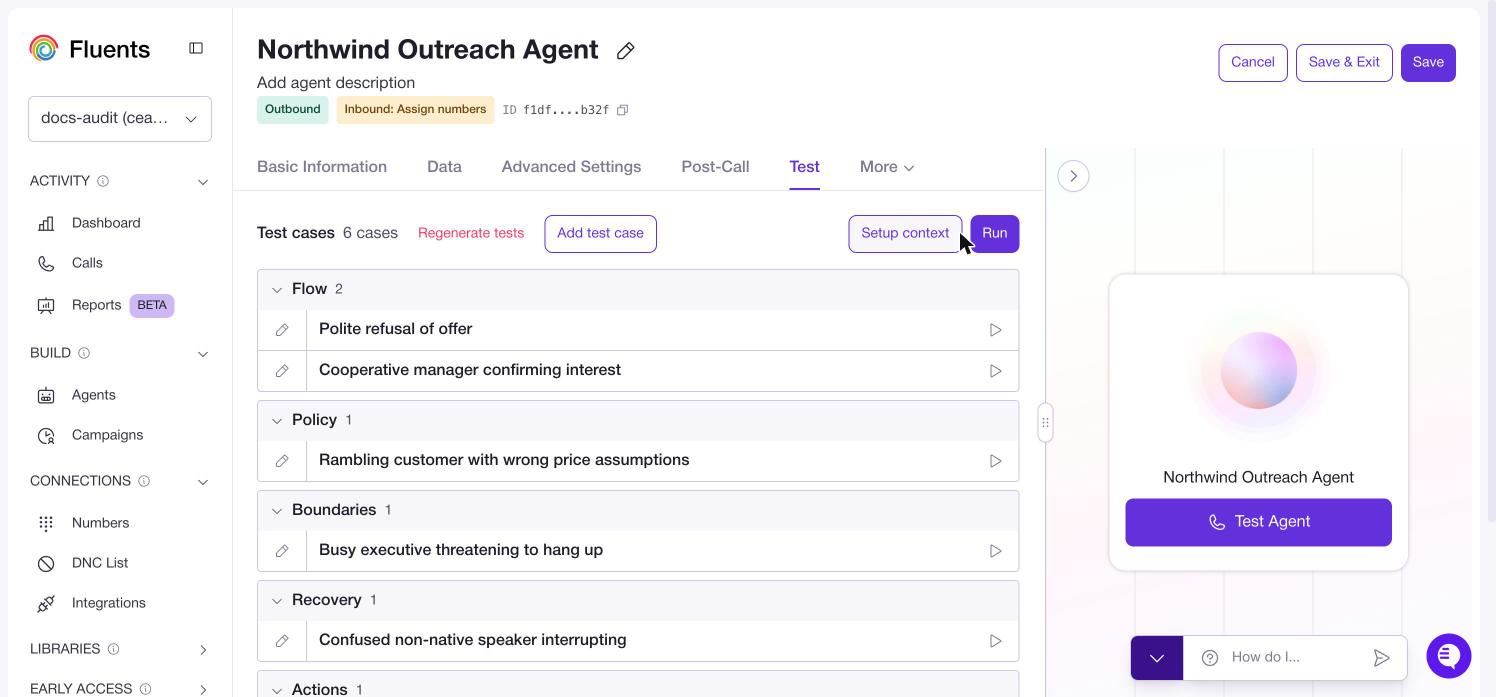 | Group | What it probes |
| -------------- | -------------------------------------------------------------- |
| **Flow** | The conversation going as intended, including a clean refusal. |
| **Policy** | The agent holding its line when the caller is wrong. |
| **Boundaries** | Difficult callers, such as someone threatening to hang up. |
| **Recovery** | Getting back on track after confusion or an interruption. |
| **Actions** | The agent doing the thing, not just talking about doing it. |
**Run** executes the whole suite, and each case has its own run control for the one you
are working on. **Setup context** supplies values like a name or an order number so
cases behave like real calls. **Regenerate tests** replaces the suite, and **Add test
case** writes one yourself.
Your captured case is in there. Run it. If it passes, the fix is real. If it does not,
go back to step 3 with better feedback.
Generated cases are a decent starting suite, but the ones worth keeping are the real
calls that went wrong. Every time you hit a new failure, capture it. The suite becomes
a record of every mistake this agent has made, and it stops making them twice.
***
## 5. Extend it with skills
Only now. A skill added to an agent that cannot hold a conversation just gives it a new
way to fail.
Skills are about how the call **ends**, not how it talks. Three earn their place first:
* **[Appointment scheduling](/product/features/skills/appointment-scheduling)** books
the meeting on the call instead of sending a link and hoping.
* **[Call back later](/product/features/skills/call-back-later)** agrees a time with
the people who are not ready now, so the contact is not spent.
* **[Call routing](/product/features/skills/call-routing)** transfers to a person when
the caller asks for one.
Ten are available in total, including in call SMS and email, IVR navigation, call
screening and calling an external API.
Adding a skill changes behaviour. Re-run your test suite afterwards. This is exactly
the situation the suite exists for.
***
## 6. Measure it, so real calls tell you what to fix
Steps 1 to 4 rely on you noticing a bad call. That does not scale past a few dozen.
On the agent's **Post-Call** tab, an **insight** is one thing you want to know about
every call. Whether they agreed to a follow up. Which product they asked about. Whether
the caller sounded confused.
| Group | What it probes |
| -------------- | -------------------------------------------------------------- |
| **Flow** | The conversation going as intended, including a clean refusal. |
| **Policy** | The agent holding its line when the caller is wrong. |
| **Boundaries** | Difficult callers, such as someone threatening to hang up. |
| **Recovery** | Getting back on track after confusion or an interruption. |
| **Actions** | The agent doing the thing, not just talking about doing it. |
**Run** executes the whole suite, and each case has its own run control for the one you
are working on. **Setup context** supplies values like a name or an order number so
cases behave like real calls. **Regenerate tests** replaces the suite, and **Add test
case** writes one yourself.
Your captured case is in there. Run it. If it passes, the fix is real. If it does not,
go back to step 3 with better feedback.
Generated cases are a decent starting suite, but the ones worth keeping are the real
calls that went wrong. Every time you hit a new failure, capture it. The suite becomes
a record of every mistake this agent has made, and it stops making them twice.
***
## 5. Extend it with skills
Only now. A skill added to an agent that cannot hold a conversation just gives it a new
way to fail.
Skills are about how the call **ends**, not how it talks. Three earn their place first:
* **[Appointment scheduling](/product/features/skills/appointment-scheduling)** books
the meeting on the call instead of sending a link and hoping.
* **[Call back later](/product/features/skills/call-back-later)** agrees a time with
the people who are not ready now, so the contact is not spent.
* **[Call routing](/product/features/skills/call-routing)** transfers to a person when
the caller asks for one.
Ten are available in total, including in call SMS and email, IVR navigation, call
screening and calling an external API.
Adding a skill changes behaviour. Re-run your test suite afterwards. This is exactly
the situation the suite exists for.
***
## 6. Measure it, so real calls tell you what to fix
Steps 1 to 4 rely on you noticing a bad call. That does not scale past a few dozen.
On the agent's **Post-Call** tab, an **insight** is one thing you want to know about
every call. Whether they agreed to a follow up. Which product they asked about. Whether
the caller sounded confused.
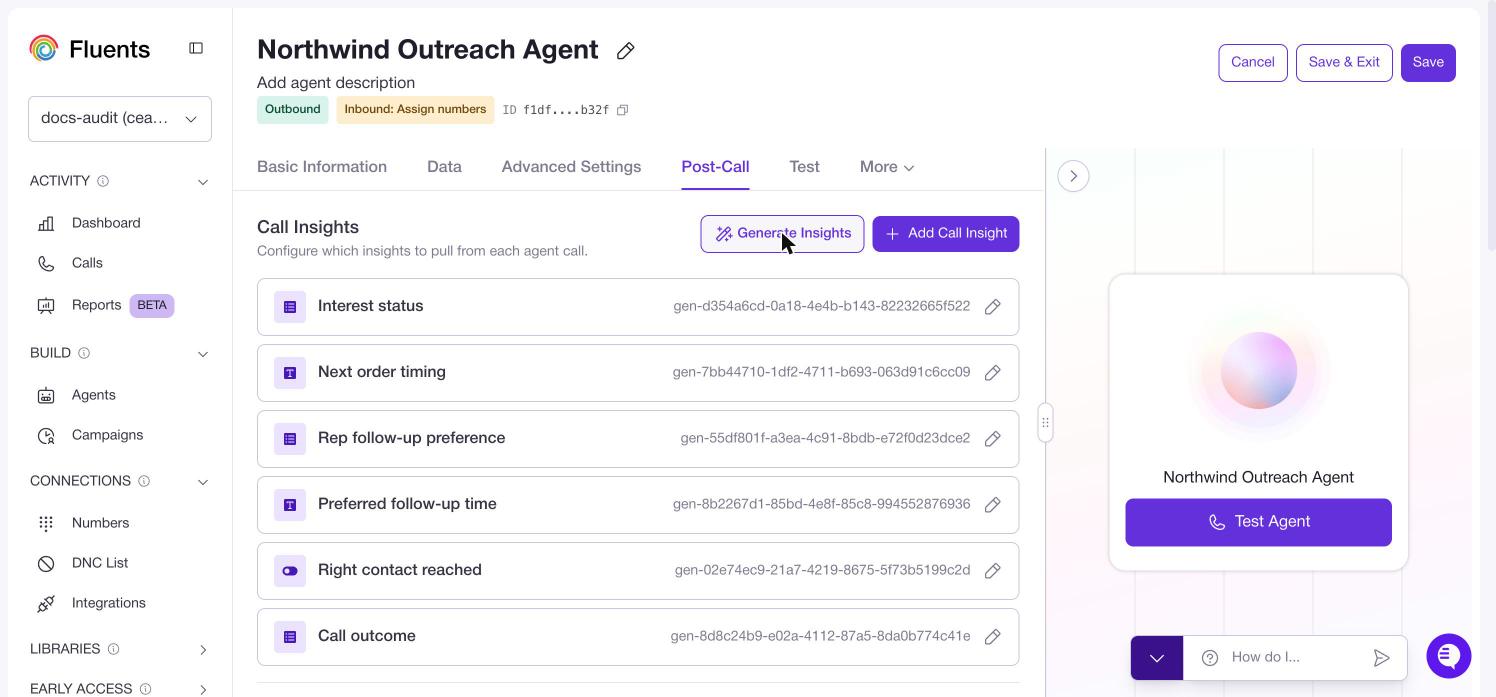 Insights show on every call in **[Calls](/product/features/call)**, can be filtered on,
and can be charted over a date range in **[Reports](/product/features/reports)**.
That is what closes the loop. Instead of listening to calls at random, you filter for
the ones where an insight says it went wrong, and each one becomes step 1 again.
See **[Post-call](/product/features/post-call)** for insights, result conditions and
follow up messaging.
***
## What good looks like after a week
* A test suite with more captured real failures in it than generated cases.
* A prompt you have never edited by hand.
* One or two insights you actually look at, rather than eight you do not.
If you take one habit from this page, take this one. When a call goes wrong, create
the test **before** you fix the prompt. Everything else follows from it.
***
## Where to go next
* **[Testing an agent](/product/features/agent-testing)** for the full Test tab.
* **[Post-call](/product/features/post-call)** for insights and result conditions.
* **[Agents](/product/features/agent)** for every setting this page skipped.
* **[Use cases](/product/use-cases/index)** for complete builds.
Insights show on every call in **[Calls](/product/features/call)**, can be filtered on,
and can be charted over a date range in **[Reports](/product/features/reports)**.
That is what closes the loop. Instead of listening to calls at random, you filter for
the ones where an insight says it went wrong, and each one becomes step 1 again.
See **[Post-call](/product/features/post-call)** for insights, result conditions and
follow up messaging.
***
## What good looks like after a week
* A test suite with more captured real failures in it than generated cases.
* A prompt you have never edited by hand.
* One or two insights you actually look at, rather than eight you do not.
If you take one habit from this page, take this one. When a call goes wrong, create
the test **before** you fix the prompt. Everything else follows from it.
***
## Where to go next
* **[Testing an agent](/product/features/agent-testing)** for the full Test tab.
* **[Post-call](/product/features/post-call)** for insights and result conditions.
* **[Agents](/product/features/agent)** for every setting this page skipped.
* **[Use cases](/product/use-cases/index)** for complete builds.