> ## Documentation Index
> Fetch the complete documentation index at: https://docs.fluents.ai/llms.txt
> Use this file to discover all available pages before exploring further.
# Zendesk
> Bring AI-powered voice calling directly into your Zendesk support workflow with the Fluents.ai app.
# Zendesk Integration
The **Fluents.ai Zendesk App** embeds your Fluents voice AI agents directly inside Zendesk. Support teams get a unified view of every AI-handled call, can create tickets in one click, and can trigger outbound AI calls without leaving the ticket.
***
## Prerequisites
* A **Zendesk** account (Suite Team or above)
* A **Fluents.ai** account with at least one agent and one phone number configured
* Your **Fluents API key** — found in your Fluents dashboard under **Settings → API Keys**
***
## Installation
### 1. Download the app
Download the latest `fluents-zendesk-app.zip` from the [Fluents GitHub repository](https://github.com/Fluentsai/integration-partner).
### 2. Open Zendesk Admin
Go to **Admin Center → Apps and integrations → Apps → Zendesk Support Apps**.
### 3. Upload the app
Click **Upload private app**, select the `.zip` file, and click **Upload**.
### 4. Enter your API key
During installation, paste your **Fluents API Key** into the `Fluents API Key` field.
The API key is stored securely via Zendesk's encrypted app settings — it is never exposed to the browser.
### 5. Enable the app
Click **Install**. The app will appear in the Zendesk top navigation bar and in the ticket sidebar.
Once installed, the app is available in two places:
| Location | Purpose |
| ---------------------- | ------------------------------------------------ |
| **Nav bar (main app)** | Full call list, analytics, and transcript viewer |
| **Ticket sidebar** | Click-to-call and requester call history |
No additional configuration is required. The app automatically loads your Fluents agents and phone numbers and fetches your most recent calls.
If you rotate your Fluents API key, re-install the app with the new key via **Admin Center → Apps → Fluents.ai → Settings**.
***
## Call List & Filters
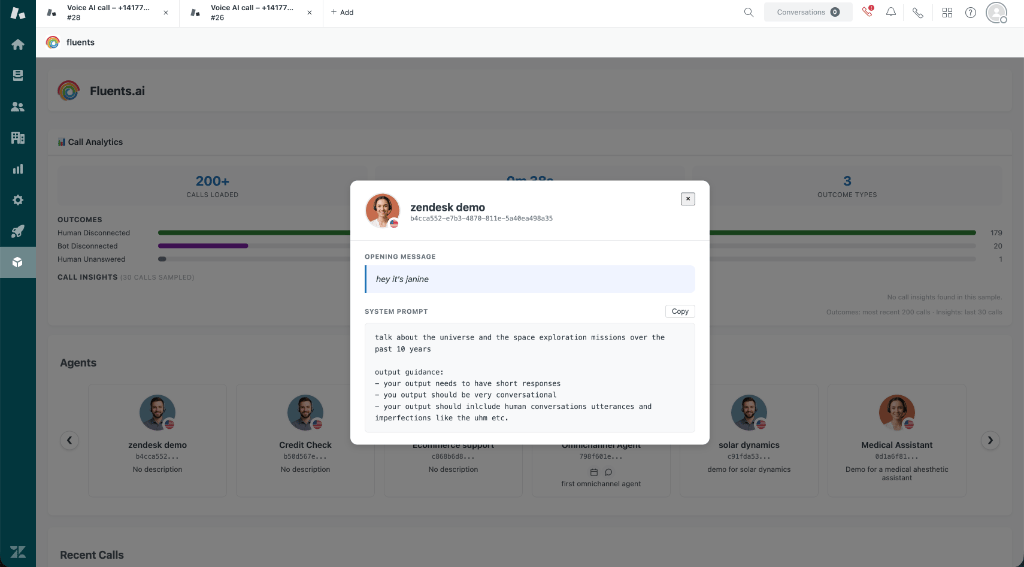
The **Call List** is the main view of the app. It shows your most recent 200 calls, paginated 10 per page, with a filter bar at the top.
 ### Filter bar
| Control | Description |
| --------------------------------- | ------------------------------------------------ |
| **Agent dropdown** | Filter calls by a specific Fluents AI agent |
| **From date** | Start of the date range (inclusive, from 00:00) |
| **To date** | End of the date range (inclusive, through 23:59) |
| **Today / Yesterday / This week** | Quick date shortcuts |
| **Clear** | Resets all filters and reloads |
Filters apply **automatically on change** — changing the agent or date fields immediately reloads the list with no extra button click.
### Call row
Each call in the list displays:
| Field | Description |
| ---------------------- | ------------------------------------------------------------------------------ |
| **Outcome badge** | Color-coded outcome (green = human-answered, purple = bot/no-answer) |
| **Agent name** | The Fluents AI agent that handled the call |
| **Phone numbers** | Caller and called numbers |
| **Date / time** | When the call started |
| **Duration** | Length of the call |
| **Ticket link** | If a ticket was created, shows the Zendesk ticket number with a clickable link |
| **Create ticket icon** | One-click ticket creation (greyed out once a ticket exists) |
**Clicking any row opens the full conversation transcript directly within Zendesk.** The transcript panel shows the complete iMessage-style dialogue between the AI agent and the customer, along with the call outcome, phone numbers, and duration. From there, you can review the conversation and create a Zendesk ticket in one click — without ever leaving your Zendesk workspace.
### Ticket references
When you create a ticket from a call, the ticket number is saved in **browser local storage** keyed to the call ID. This means:
* The ticket reference **persists across page reloads**
* The create-ticket icon becomes **greyed out** to prevent accidentally creating duplicate tickets
* Each browser/device maintains its own references independently
Ticket references are stored locally in the browser. Clearing browser data will remove them. For a fully shared persistent reference, consider using a custom Zendesk ticket field mapped to the call ID.
***
## Transcript Viewer
Clicking any call row opens the **Transcript Modal** — a full-screen overlay with the call conversation rendered as a chat.
### Filter bar
| Control | Description |
| --------------------------------- | ------------------------------------------------ |
| **Agent dropdown** | Filter calls by a specific Fluents AI agent |
| **From date** | Start of the date range (inclusive, from 00:00) |
| **To date** | End of the date range (inclusive, through 23:59) |
| **Today / Yesterday / This week** | Quick date shortcuts |
| **Clear** | Resets all filters and reloads |
Filters apply **automatically on change** — changing the agent or date fields immediately reloads the list with no extra button click.
### Call row
Each call in the list displays:
| Field | Description |
| ---------------------- | ------------------------------------------------------------------------------ |
| **Outcome badge** | Color-coded outcome (green = human-answered, purple = bot/no-answer) |
| **Agent name** | The Fluents AI agent that handled the call |
| **Phone numbers** | Caller and called numbers |
| **Date / time** | When the call started |
| **Duration** | Length of the call |
| **Ticket link** | If a ticket was created, shows the Zendesk ticket number with a clickable link |
| **Create ticket icon** | One-click ticket creation (greyed out once a ticket exists) |
**Clicking any row opens the full conversation transcript directly within Zendesk.** The transcript panel shows the complete iMessage-style dialogue between the AI agent and the customer, along with the call outcome, phone numbers, and duration. From there, you can review the conversation and create a Zendesk ticket in one click — without ever leaving your Zendesk workspace.
### Ticket references
When you create a ticket from a call, the ticket number is saved in **browser local storage** keyed to the call ID. This means:
* The ticket reference **persists across page reloads**
* The create-ticket icon becomes **greyed out** to prevent accidentally creating duplicate tickets
* Each browser/device maintains its own references independently
Ticket references are stored locally in the browser. Clearing browser data will remove them. For a fully shared persistent reference, consider using a custom Zendesk ticket field mapped to the call ID.
***
## Transcript Viewer
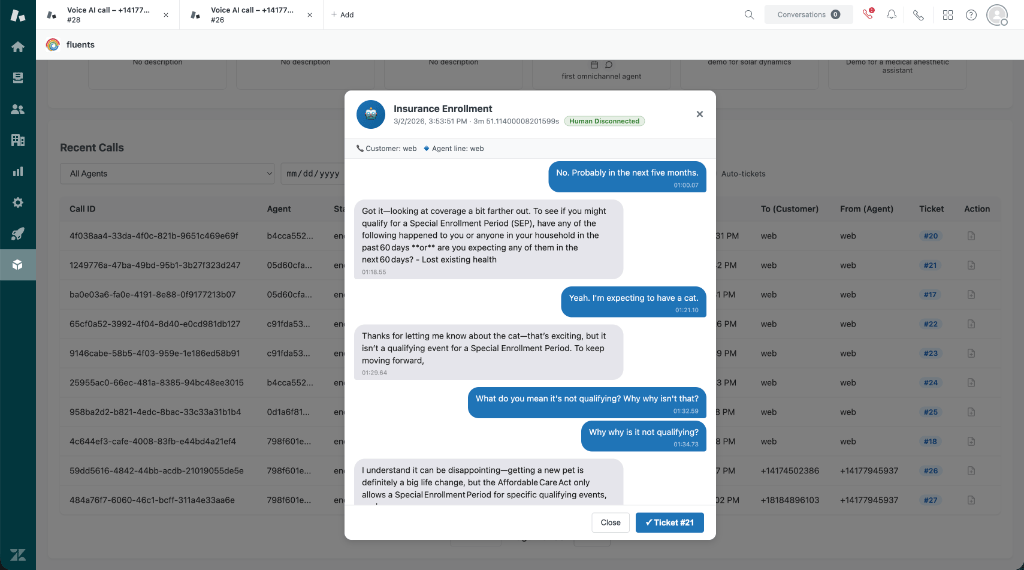
Clicking any call row opens the **Transcript Modal** — a full-screen overlay with the call conversation rendered as a chat.
 ### Header
| Element | Description |
| ----------------- | -------------------------------------------------- |
| **Agent avatar** | Auto-generated initial avatar in the agent's color |
| **Agent name** | The Fluents AI agent that handled the call |
| **Outcome badge** | Color-coded outcome label |
| **Phone chips** | Caller number and called number |
### Chat bubbles
The conversation is displayed as iMessage-style chat bubbles:
| Speaker | Style |
| ------------ | -------------------------------- |
| **AI Agent** | Light gray pill, left-aligned |
| **Human** | Fluents blue pill, right-aligned |
Timestamps embedded in the transcript are automatically stripped and displayed as faded captions below each message.
### Create Ticket from transcript
The modal footer has a **Create Ticket** button that creates a Zendesk ticket pre-populated with:
* **Subject**: `AI Call – {agent name} – {date}`
* **Tags**: `fluents-ai`, `ai-call`, and the call outcome
* **Internal note**: Full call transcript and a link to the call
Once a ticket is created the button is replaced with a clickable **ticket number link**.
You can only create one ticket per call per browser. The create button is permanently disabled for that call once a ticket has been created.
***
## Call Analytics
The **Analytics Panel** sits above the call list and loads automatically when the app opens.
### Outcome distribution
A horizontal bar chart shows the count of each call outcome across your most recent 200 calls:
| Outcome group | Color |
| ------------------------------------------------------ | ------------------- |
| `human_answered`, `completed`, `appointment_booked` | 🟢 Shades of green |
| `bot_disconnected`, `no_answer`, `voicemail`, `failed` | 🟣 Shades of purple |
Summary stat cards show: **total calls loaded**, **average call duration**, and the **number of distinct outcome types**.
### Call Insights
Below the outcome chart, the app samples the **30 most recent calls** and aggregates every `call_insights` field. Each insight key is rendered as its own bar group showing the value distribution. The panel adapts dynamically to your account's insight schema with no hardcoding.
Insights are sampled from the 30 most recent calls to keep the panel responsive. Analytics load once at app startup — reload the app to refresh.
***
## Click-to-Call Sidebar
The **Sidebar** appears in the right-hand panel of any Zendesk ticket. It lets agents start an outbound AI call and view the ticket requester's recent call history.
### Header
| Element | Description |
| ----------------- | -------------------------------------------------- |
| **Agent avatar** | Auto-generated initial avatar in the agent's color |
| **Agent name** | The Fluents AI agent that handled the call |
| **Outcome badge** | Color-coded outcome label |
| **Phone chips** | Caller number and called number |
### Chat bubbles
The conversation is displayed as iMessage-style chat bubbles:
| Speaker | Style |
| ------------ | -------------------------------- |
| **AI Agent** | Light gray pill, left-aligned |
| **Human** | Fluents blue pill, right-aligned |
Timestamps embedded in the transcript are automatically stripped and displayed as faded captions below each message.
### Create Ticket from transcript
The modal footer has a **Create Ticket** button that creates a Zendesk ticket pre-populated with:
* **Subject**: `AI Call – {agent name} – {date}`
* **Tags**: `fluents-ai`, `ai-call`, and the call outcome
* **Internal note**: Full call transcript and a link to the call
Once a ticket is created the button is replaced with a clickable **ticket number link**.
You can only create one ticket per call per browser. The create button is permanently disabled for that call once a ticket has been created.
***
## Call Analytics
The **Analytics Panel** sits above the call list and loads automatically when the app opens.
### Outcome distribution
A horizontal bar chart shows the count of each call outcome across your most recent 200 calls:
| Outcome group | Color |
| ------------------------------------------------------ | ------------------- |
| `human_answered`, `completed`, `appointment_booked` | 🟢 Shades of green |
| `bot_disconnected`, `no_answer`, `voicemail`, `failed` | 🟣 Shades of purple |
Summary stat cards show: **total calls loaded**, **average call duration**, and the **number of distinct outcome types**.
### Call Insights
Below the outcome chart, the app samples the **30 most recent calls** and aggregates every `call_insights` field. Each insight key is rendered as its own bar group showing the value distribution. The panel adapts dynamically to your account's insight schema with no hardcoding.
Insights are sampled from the 30 most recent calls to keep the panel responsive. Analytics load once at app startup — reload the app to refresh.
***
## Click-to-Call Sidebar
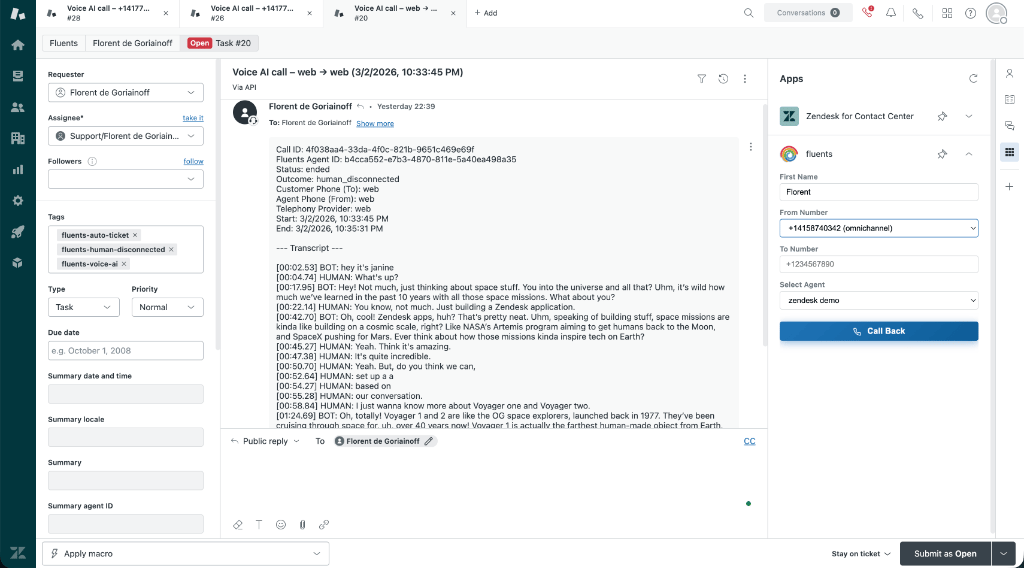
The **Sidebar** appears in the right-hand panel of any Zendesk ticket. It lets agents start an outbound AI call and view the ticket requester's recent call history.
 ### Starting a call
Select an **agent** and **phone number**, then click **Start AI Call**.
| Field | Description |
| --------------- | ------------------------------------------------------------- |
| **Agent** | Which Fluents AI agent will handle the call |
| **From number** | The Fluents number the call will originate from |
| **To number** | Pre-filled from the ticket requester's phone field (editable) |
The sidebar auto-selects the first available agent and number when it loads — in most cases the agent just needs to verify the fields and click **Start AI Call**.
When a call is initiated from the sidebar, the ticket is automatically tagged with `fluents-ai` and `outbound-ai-call`.
### Requester call history
Below the call form, the sidebar shows the **last 5 Fluents calls** associated with the ticket requester's phone number, including:
* Call outcome badge
* Date, time, and duration
* Transcript preview (click to expand inline)
This gives agents full context on previous AI interactions before they intervene or initiate a new call.
***
## Auto-Ticket Creation
The **Auto-Ticket** feature polls your Fluents account every 60 seconds and automatically creates a Zendesk ticket for any recently completed call that doesn't already have one.
### Enabling auto-tickets
Toggle the **Auto-tickets** switch in the call list filter bar. The toggle state is saved in browser local storage and survives page reloads.
When enabled:
1. The app polls for new calls every 60 seconds
2. Any call completed in the last 5 minutes without a local ticket reference is processed
3. A Zendesk ticket is created automatically
4. The ticket reference is saved so the same call is never processed twice
### Ticket contents
| Field | Value |
| ----------------- | ------------------------------------ |
| **Subject** | `AI Call – {agent name} – {date}` |
| **Status** | New |
| **Tags** | `fluents-ai`, `ai-call`, `{outcome}` |
| **Internal note** | Full transcript (if available) |
If multiple agents use the app from different browsers, each browser tracks its own ticket references independently. Use a shared Zendesk view filtered by the `fluents-ai` tag to avoid duplicate processing.
***
## Live Call Badge
The **Live Call Badge** is a pulsing animated indicator in the top-right of the app header.
| State | Display |
| --------------- | --------------------------------------------- |
| No active calls | Badge is hidden |
| 1+ active calls | Pulsing green dot + call count + "Live" label |
The badge polls your Fluents account every **30 seconds** and updates automatically. A call is considered live if its status from the Fluents API is `in_progress`. This helps supervisors and team leads see at a glance that the AI is active.
### Starting a call
Select an **agent** and **phone number**, then click **Start AI Call**.
| Field | Description |
| --------------- | ------------------------------------------------------------- |
| **Agent** | Which Fluents AI agent will handle the call |
| **From number** | The Fluents number the call will originate from |
| **To number** | Pre-filled from the ticket requester's phone field (editable) |
The sidebar auto-selects the first available agent and number when it loads — in most cases the agent just needs to verify the fields and click **Start AI Call**.
When a call is initiated from the sidebar, the ticket is automatically tagged with `fluents-ai` and `outbound-ai-call`.
### Requester call history
Below the call form, the sidebar shows the **last 5 Fluents calls** associated with the ticket requester's phone number, including:
* Call outcome badge
* Date, time, and duration
* Transcript preview (click to expand inline)
This gives agents full context on previous AI interactions before they intervene or initiate a new call.
***
## Auto-Ticket Creation
The **Auto-Ticket** feature polls your Fluents account every 60 seconds and automatically creates a Zendesk ticket for any recently completed call that doesn't already have one.
### Enabling auto-tickets
Toggle the **Auto-tickets** switch in the call list filter bar. The toggle state is saved in browser local storage and survives page reloads.
When enabled:
1. The app polls for new calls every 60 seconds
2. Any call completed in the last 5 minutes without a local ticket reference is processed
3. A Zendesk ticket is created automatically
4. The ticket reference is saved so the same call is never processed twice
### Ticket contents
| Field | Value |
| ----------------- | ------------------------------------ |
| **Subject** | `AI Call – {agent name} – {date}` |
| **Status** | New |
| **Tags** | `fluents-ai`, `ai-call`, `{outcome}` |
| **Internal note** | Full transcript (if available) |
If multiple agents use the app from different browsers, each browser tracks its own ticket references independently. Use a shared Zendesk view filtered by the `fluents-ai` tag to avoid duplicate processing.
***
## Live Call Badge
The **Live Call Badge** is a pulsing animated indicator in the top-right of the app header.
| State | Display |
| --------------- | --------------------------------------------- |
| No active calls | Badge is hidden |
| 1+ active calls | Pulsing green dot + call count + "Live" label |
The badge polls your Fluents account every **30 seconds** and updates automatically. A call is considered live if its status from the Fluents API is `in_progress`. This helps supervisors and team leads see at a glance that the AI is active.