> ## Documentation Index
> Fetch the complete documentation index at: https://docs.fluents.ai/llms.txt
> Use this file to discover all available pages before exploring further.
# ActiveCampaign
> Integrate Fluents Voice AI with ActiveCampaign to automate calls, log conversations, and manage contacts directly from your workflows.
# ActiveCampaign Integration
This guide walks you through setting up the Fluents integration with ActiveCampaign.\
Once connected, you can trigger AI-powered calls from your workflows and log conversation details back to ActiveCampaign contacts.
***
## Prerequisites
Before you begin, make sure you have:
* A Fluents account. If you don’t have one, [sign up here](https://platform.fluents.ai/signup).
* Your Fluents API key. Follow our guide: [How to Get Your API Key](https://docs.fluents.ai/product/how-to/get-api-key).
After creating your account, you’ll see a pre-created Agent called **“My First Agent.”**\
You can use this Agent as-is or modify it for ActiveCampaign.
***
## Outbound Calls via ActiveCampaign Workflows
### 1. Add the Fluents Action to a Workflow
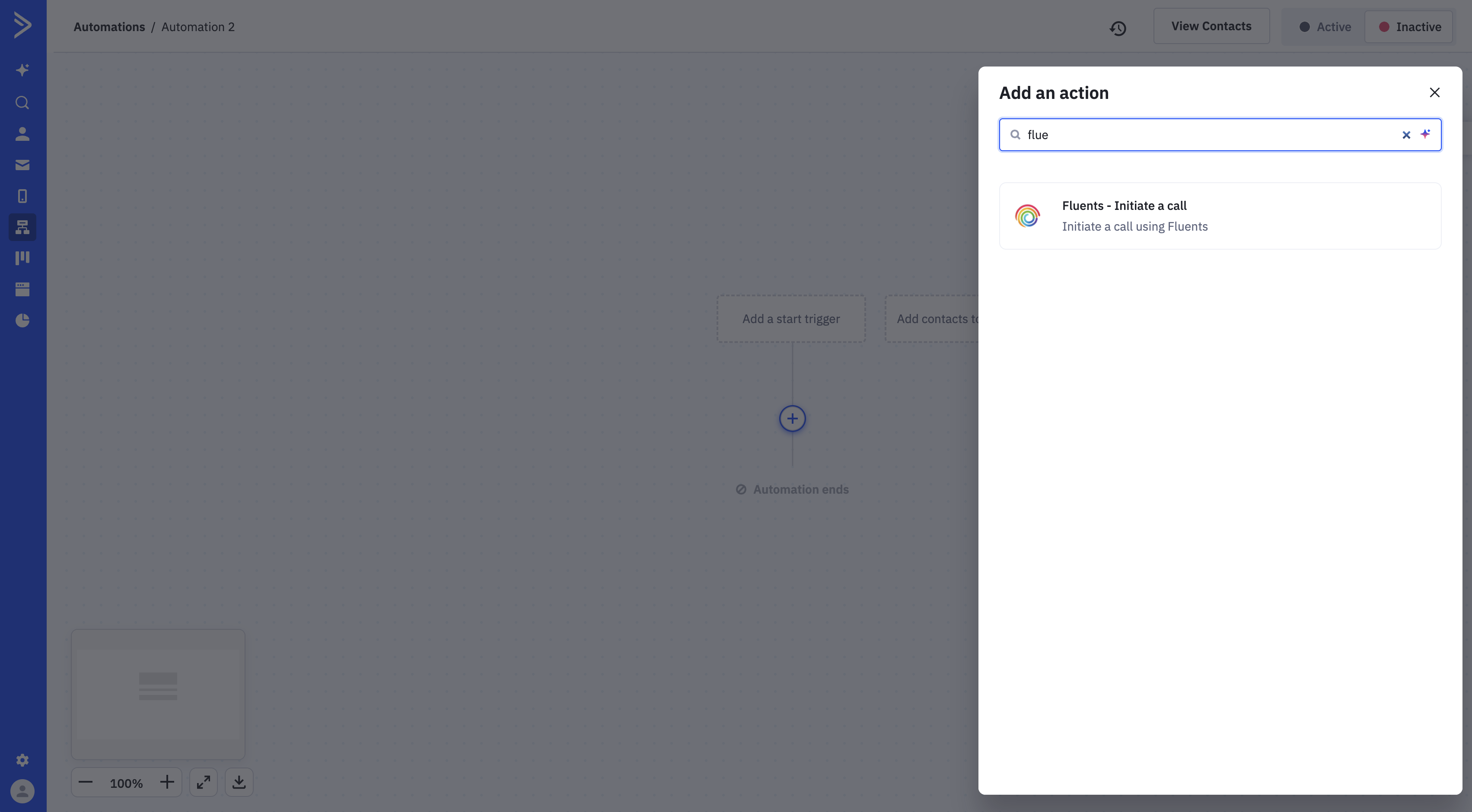
In the ActiveCampaign workflow designer, click the **+** icon to add a new action.\
Search for **Fluents** and select it.
***
### 2. Connect to Fluents
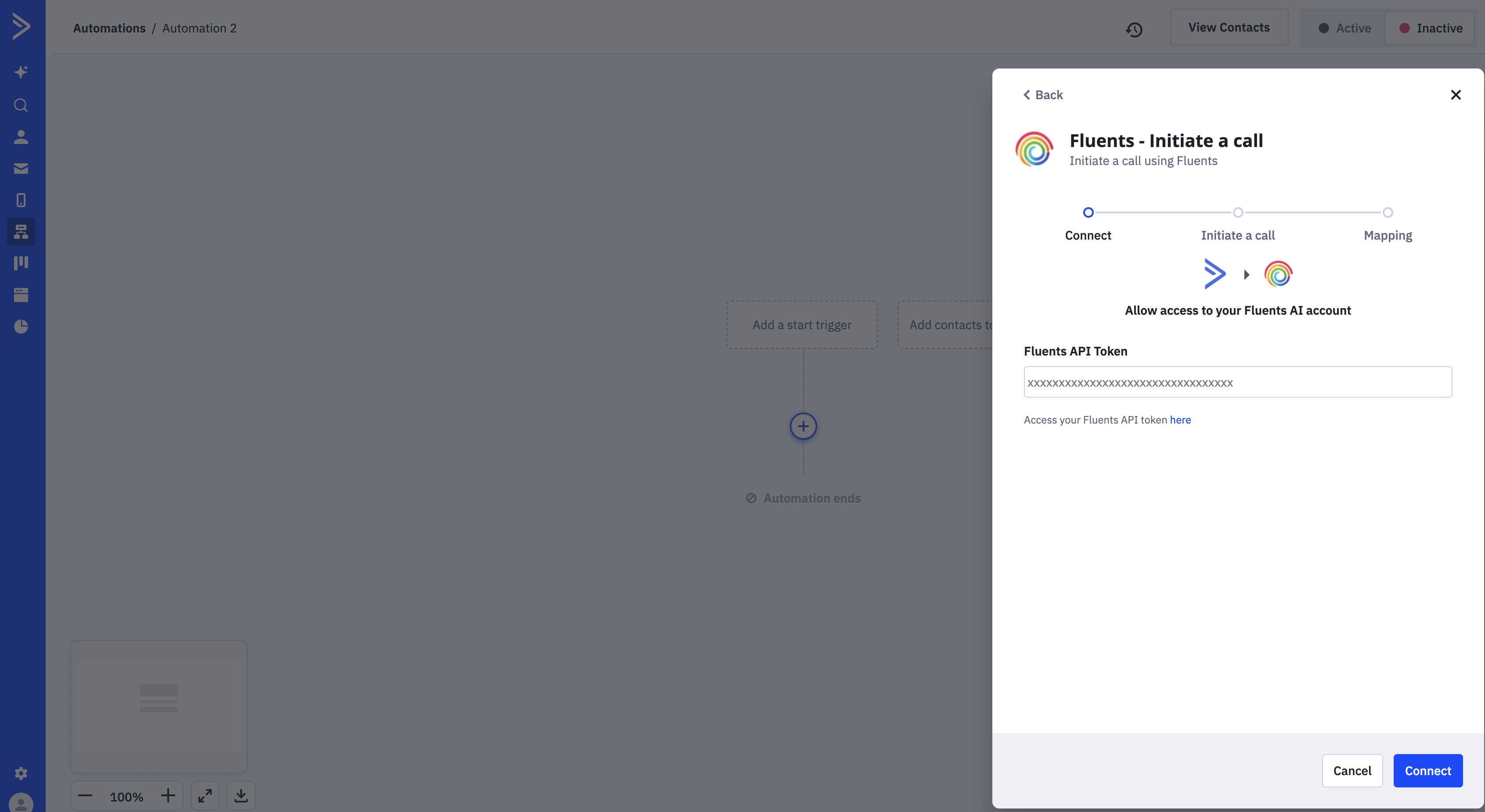
Paste your Fluents API key (from the prerequisites step) into the API key field to connect your account.
***
### 3. Configure the AI Agent
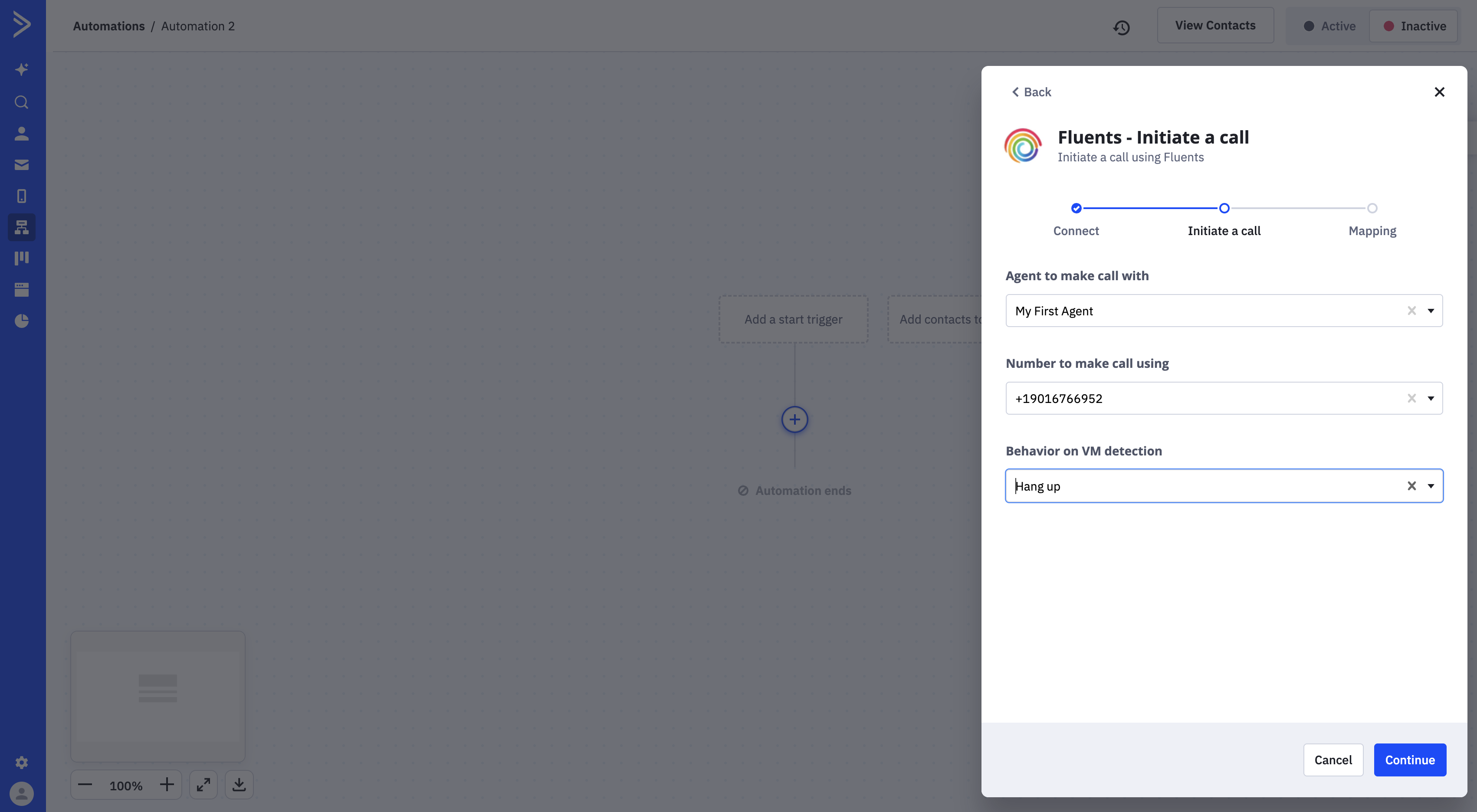
After connecting, configure the following fields (auto-populated from your account):
* **Agent to make call with** — Choose which Agent to use. “My First Agent” will be pre-selected if it’s your first time.
* **Number to make call using** — Fluents provides a phone number during account creation. This number will be used for outbound calls.
* **Behavior on VM detection** — Define how the Agent handles voicemail: hang up immediately or leave a pre-recorded message.
***
### 4. Map ActiveCampaign Fields to Fluents Variables
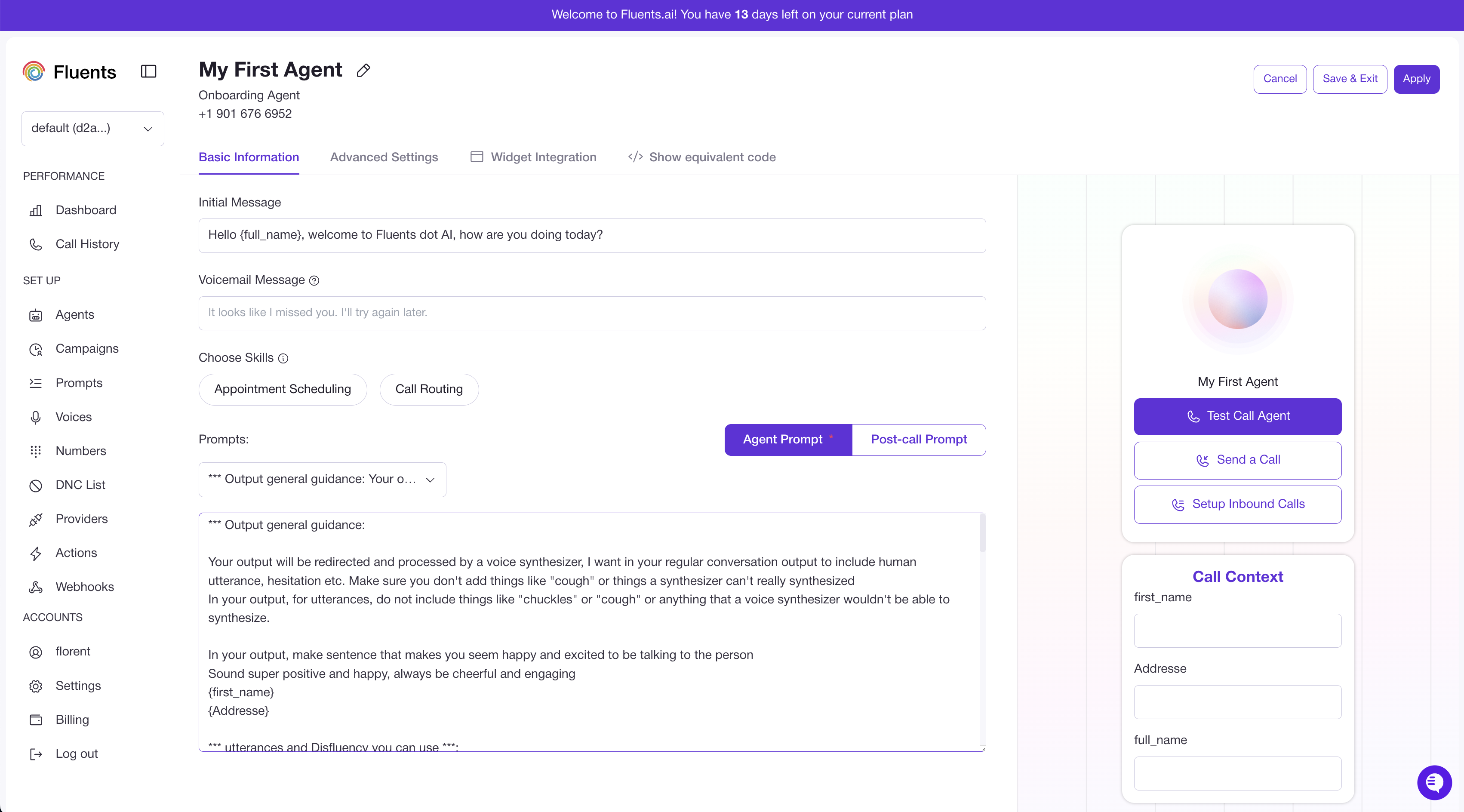
Fluents supports custom variables like `{first_name}` or `{company_name}` to personalize conversations.\
Here’s an example of a Prompt using variables:
Now map ActiveCampaign contact fields to these Fluents variables.
A valid **phone number** is required. Ensure the ActiveCampaign contact object includes one and is mapped correctly.
Once mapping is complete, click **Finish**.\
You can now add a trigger (e.g., form submission) and continue building your workflow with follow-up actions after the call.
***
### 5. Viewing Call Results
When a call finishes, Fluents automatically logs:
* The **full transcript**
* A **summary of the conversation**
Both are stored in the contact’s notes field in ActiveCampaign.
You can also review call logs directly within Fluents and see them linked to the ActiveCampaign contact.
***
## Inbound Calls + ActiveCampaign
You can also log inbound calls into ActiveCampaign by configuring a **Post-Call Action** in Fluents.
### Configure Post-Call Actions in Fluents
The post-call prompt instructs the AI how to summarize the conversation.\
That summary, along with the transcript, is then logged in the contact’s notes in ActiveCampaign.
With this setup, both inbound and outbound calls are captured in ActiveCampaign, providing a complete history of customer interactions.
 ***
### 2. Connect to Fluents
Paste your Fluents API key (from the prerequisites step) into the API key field to connect your account.
***
### 2. Connect to Fluents
Paste your Fluents API key (from the prerequisites step) into the API key field to connect your account.
 ***
### 3. Configure the AI Agent
After connecting, configure the following fields (auto-populated from your account):
* **Agent to make call with** — Choose which Agent to use. “My First Agent” will be pre-selected if it’s your first time.
* **Number to make call using** — Fluents provides a phone number during account creation. This number will be used for outbound calls.
* **Behavior on VM detection** — Define how the Agent handles voicemail: hang up immediately or leave a pre-recorded message.
***
### 3. Configure the AI Agent
After connecting, configure the following fields (auto-populated from your account):
* **Agent to make call with** — Choose which Agent to use. “My First Agent” will be pre-selected if it’s your first time.
* **Number to make call using** — Fluents provides a phone number during account creation. This number will be used for outbound calls.
* **Behavior on VM detection** — Define how the Agent handles voicemail: hang up immediately or leave a pre-recorded message.
 ***
### 4. Map ActiveCampaign Fields to Fluents Variables
Fluents supports custom variables like `{first_name}` or `{company_name}` to personalize conversations.\
Here’s an example of a Prompt using variables:
***
### 4. Map ActiveCampaign Fields to Fluents Variables
Fluents supports custom variables like `{first_name}` or `{company_name}` to personalize conversations.\
Here’s an example of a Prompt using variables:
 Now map ActiveCampaign contact fields to these Fluents variables.
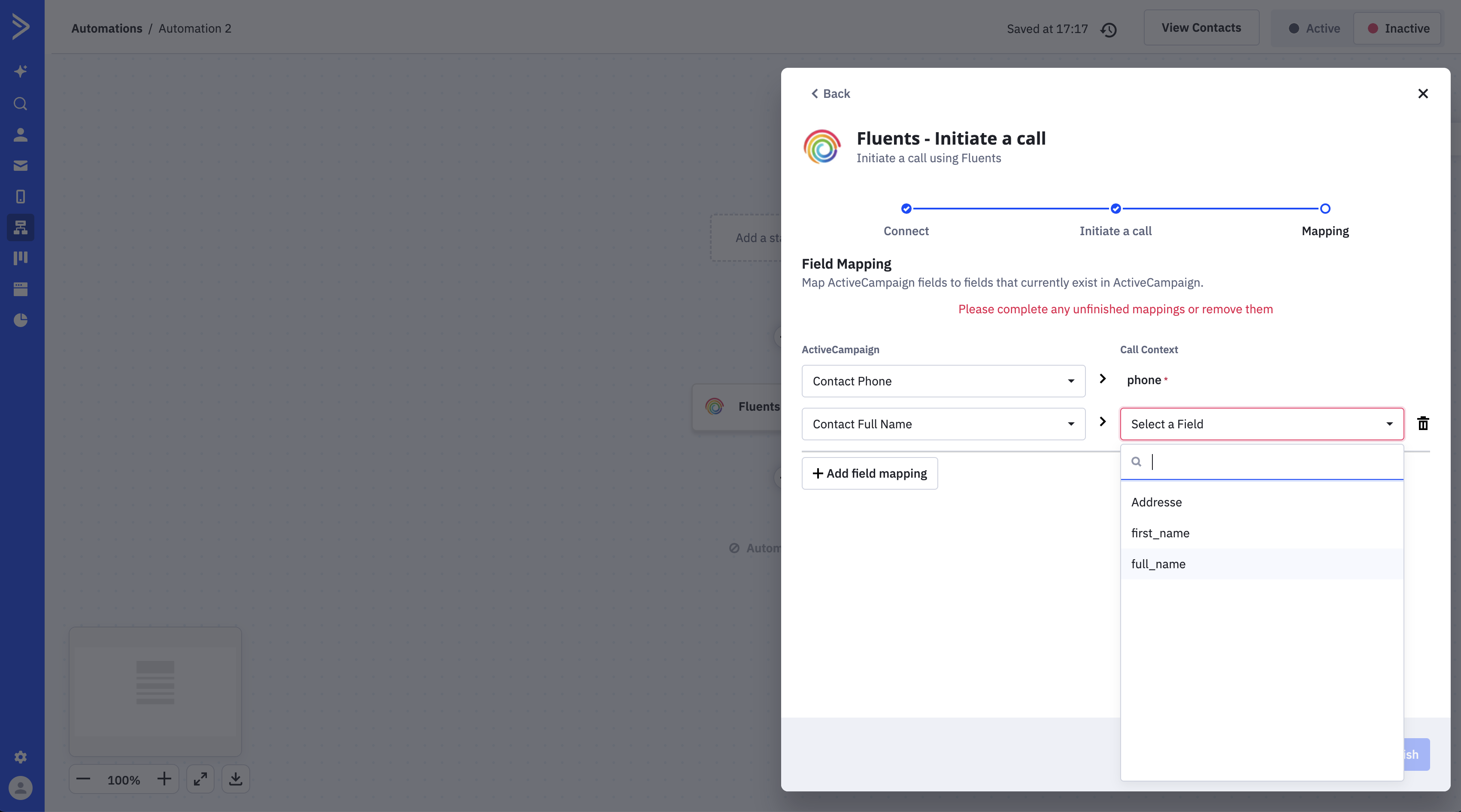 Once mapping is complete, click **Finish**.\
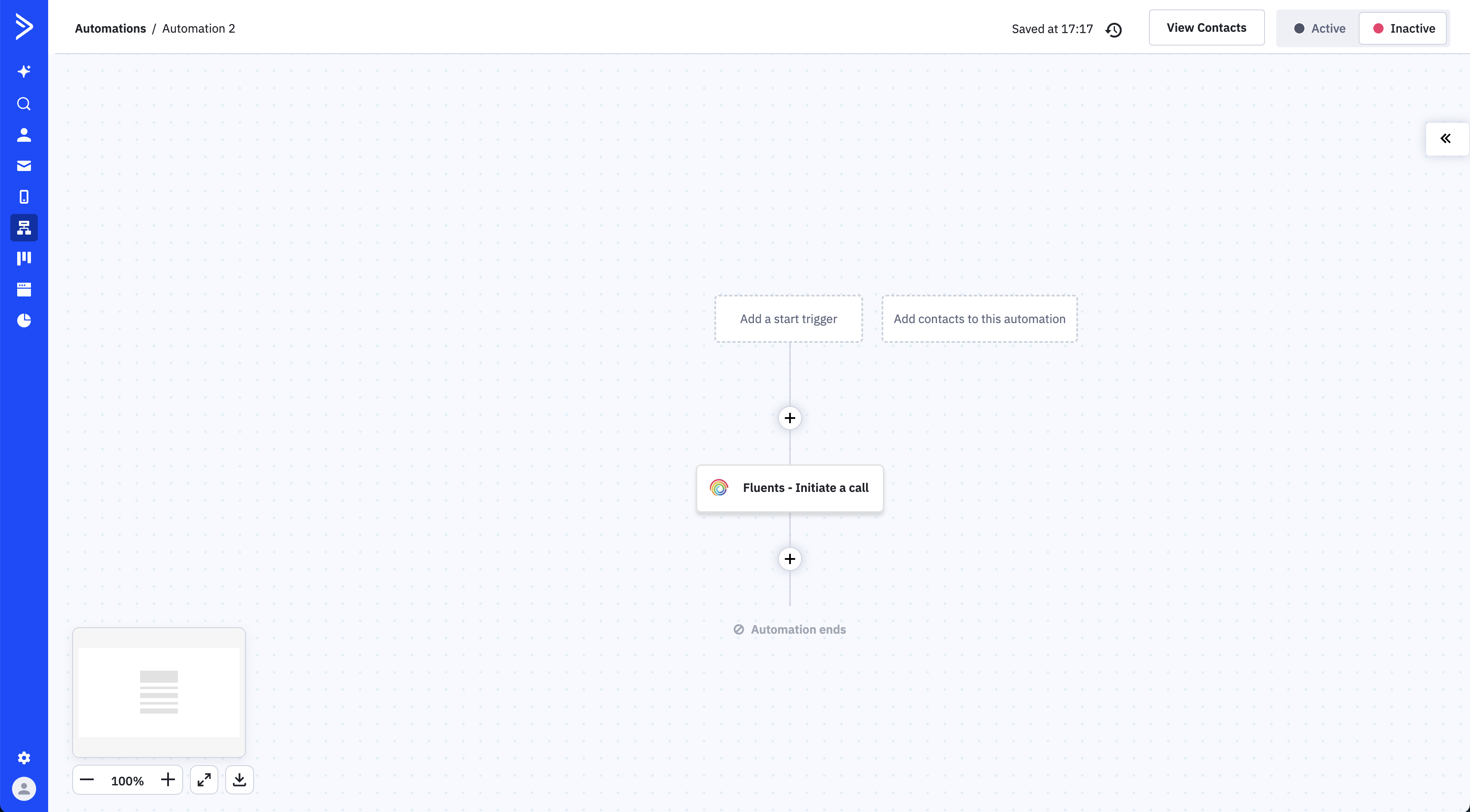
You can now add a trigger (e.g., form submission) and continue building your workflow with follow-up actions after the call.
Once mapping is complete, click **Finish**.\
You can now add a trigger (e.g., form submission) and continue building your workflow with follow-up actions after the call.
 ***
### 5. Viewing Call Results
When a call finishes, Fluents automatically logs:
* The **full transcript**
* A **summary of the conversation**
Both are stored in the contact’s notes field in ActiveCampaign.
***
### 5. Viewing Call Results
When a call finishes, Fluents automatically logs:
* The **full transcript**
* A **summary of the conversation**
Both are stored in the contact’s notes field in ActiveCampaign.
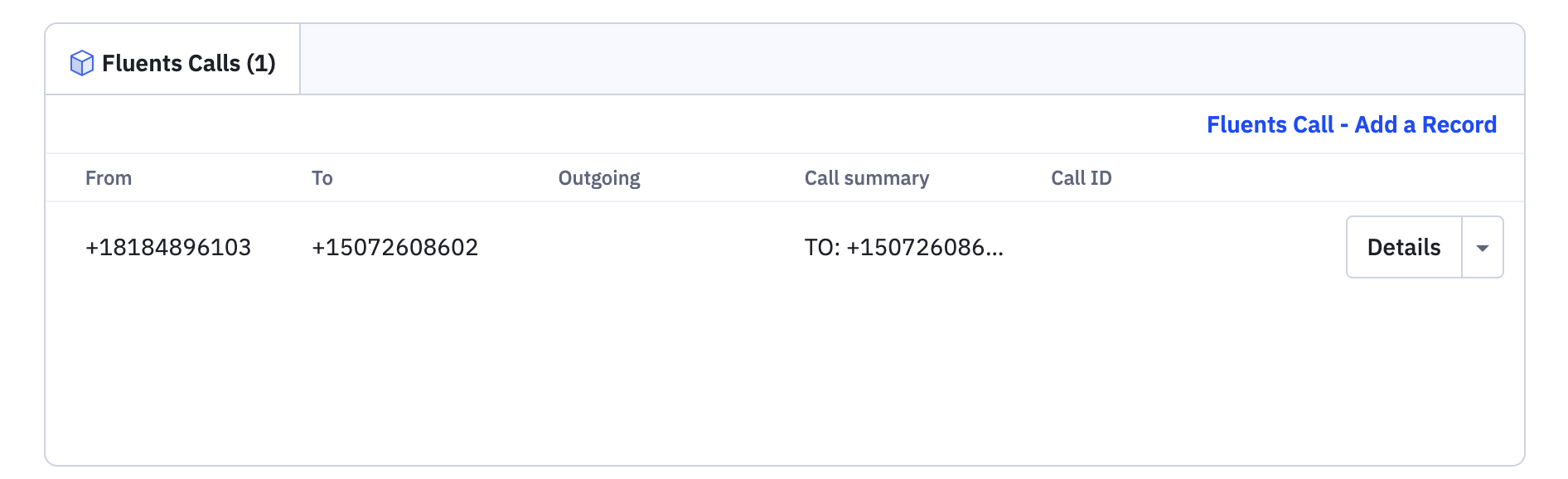
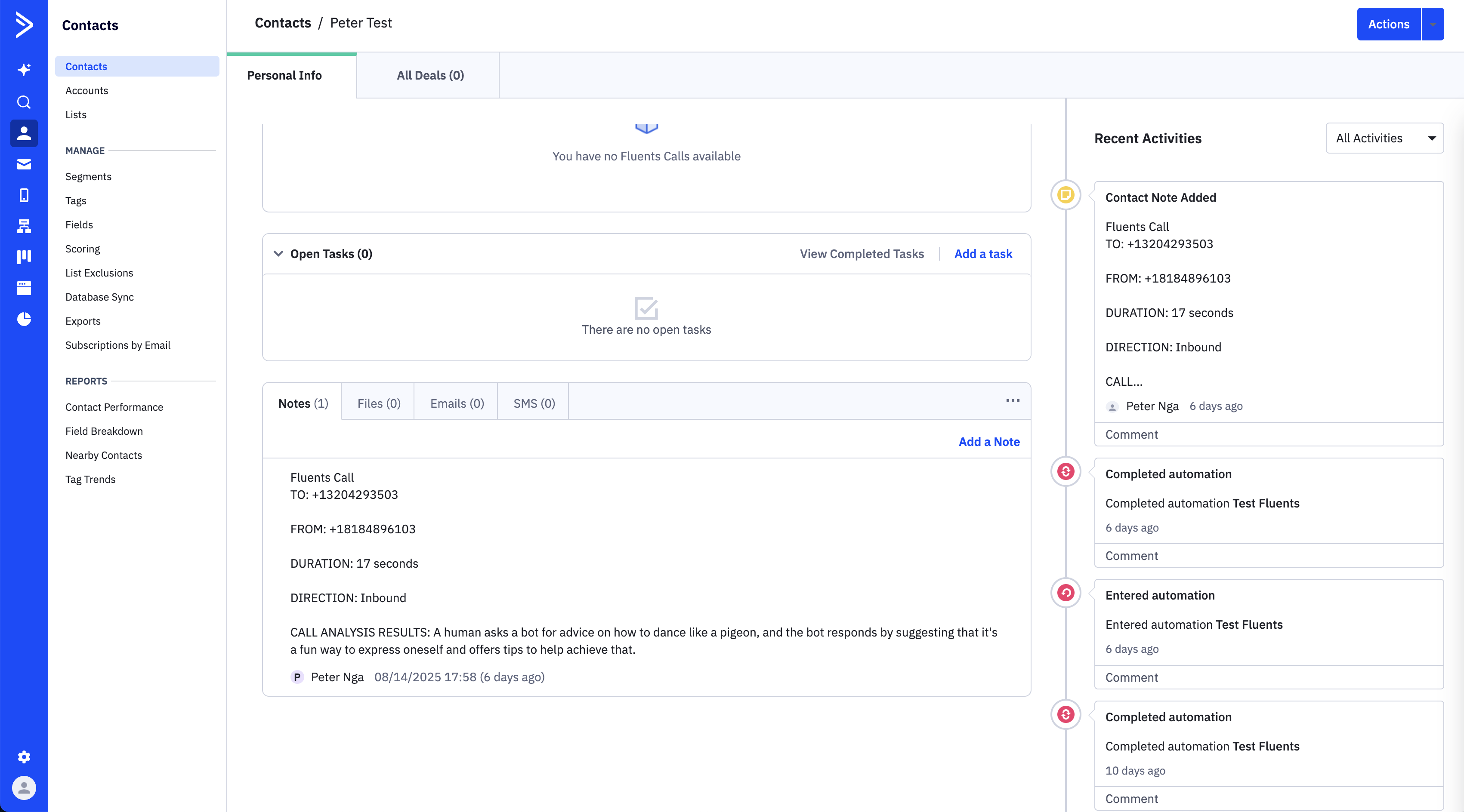 You can also review call logs directly within Fluents and see them linked to the ActiveCampaign contact.
 ***
## Inbound Calls + ActiveCampaign
You can also log inbound calls into ActiveCampaign by configuring a **Post-Call Action** in Fluents.
### Configure Post-Call Actions in Fluents
The post-call prompt instructs the AI how to summarize the conversation.\
That summary, along with the transcript, is then logged in the contact’s notes in ActiveCampaign.
***
## Inbound Calls + ActiveCampaign
You can also log inbound calls into ActiveCampaign by configuring a **Post-Call Action** in Fluents.
### Configure Post-Call Actions in Fluents
The post-call prompt instructs the AI how to summarize the conversation.\
That summary, along with the transcript, is then logged in the contact’s notes in ActiveCampaign.
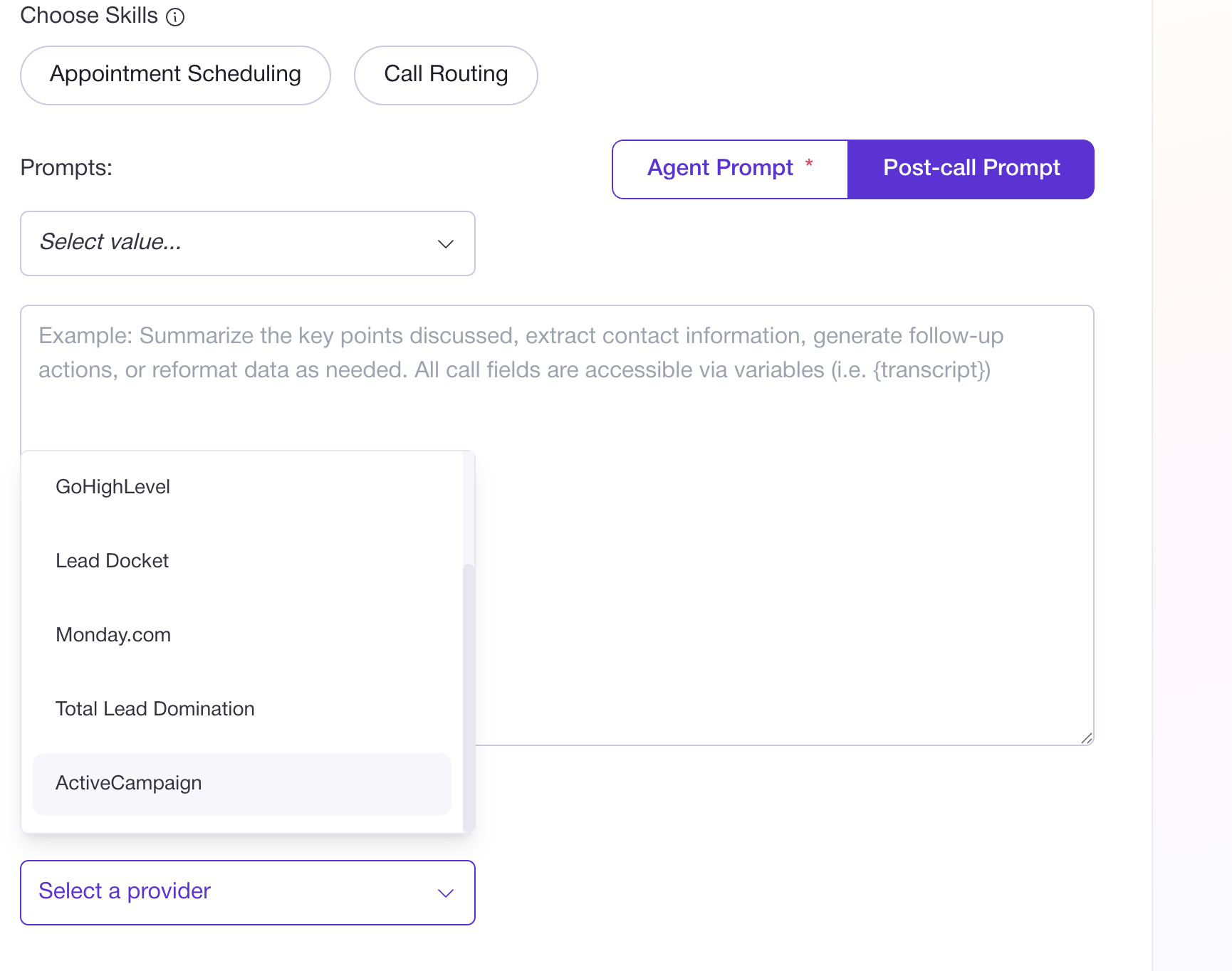 With this setup, both inbound and outbound calls are captured in ActiveCampaign, providing a complete history of customer interactions.