> ## Documentation Index
> Fetch the complete documentation index at: https://docs.fluents.ai/llms.txt
> Use this file to discover all available pages before exploring further.
# How-To: Get API Key
> Retrieve your API key from the settings section to integrate Fluents with third-party applications or custom code.
# Get API Key
Use your **API key** to connect Fluents with third-party applications or your own code.
***
## Step 1: Navigate to Settings
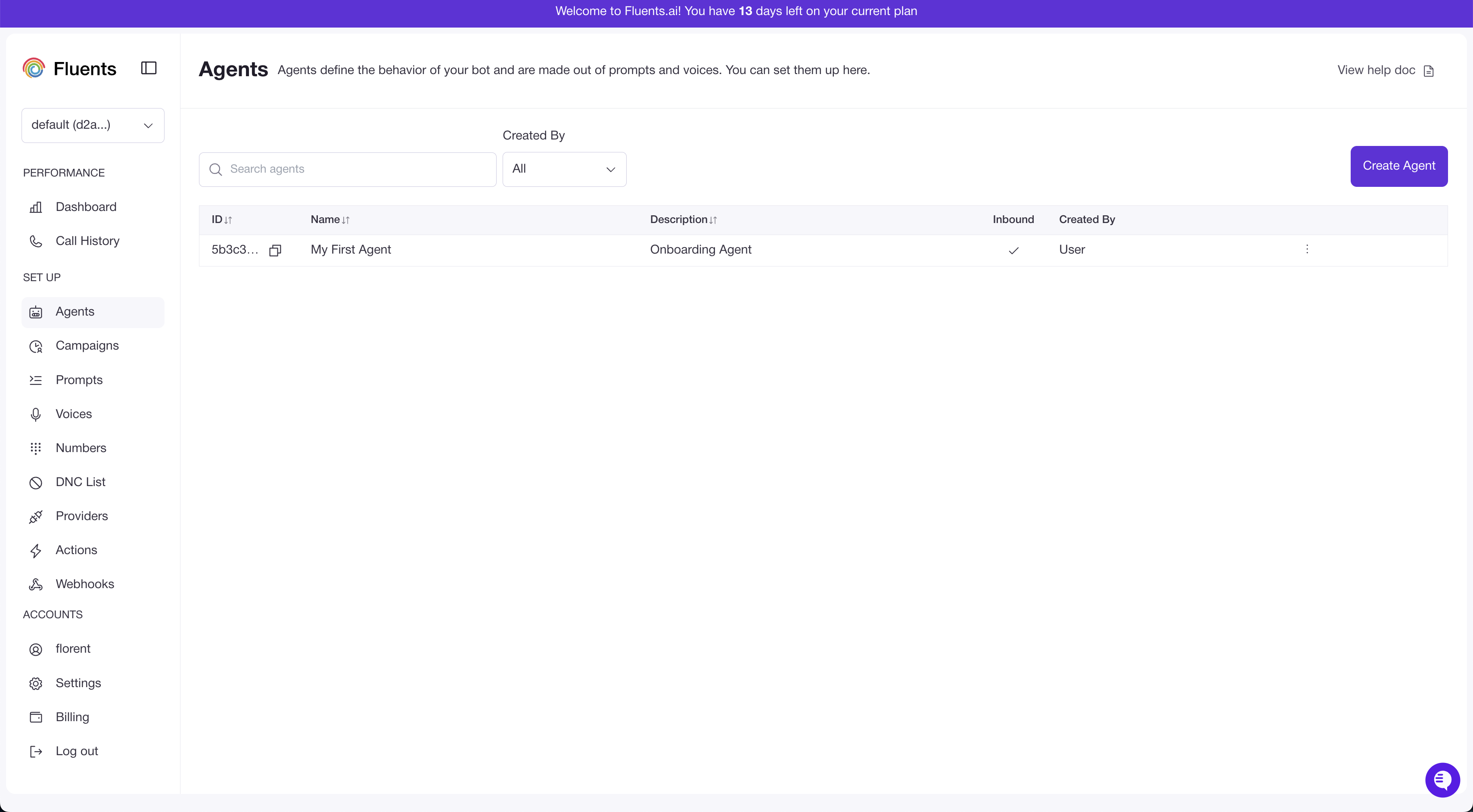
1. Log in to your Fluents dashboard.
2. In the sidebar, click **Settings**.
3. This opens the settings page where your API key is available.
 ***
## Step 2: Locate and Copy API Key
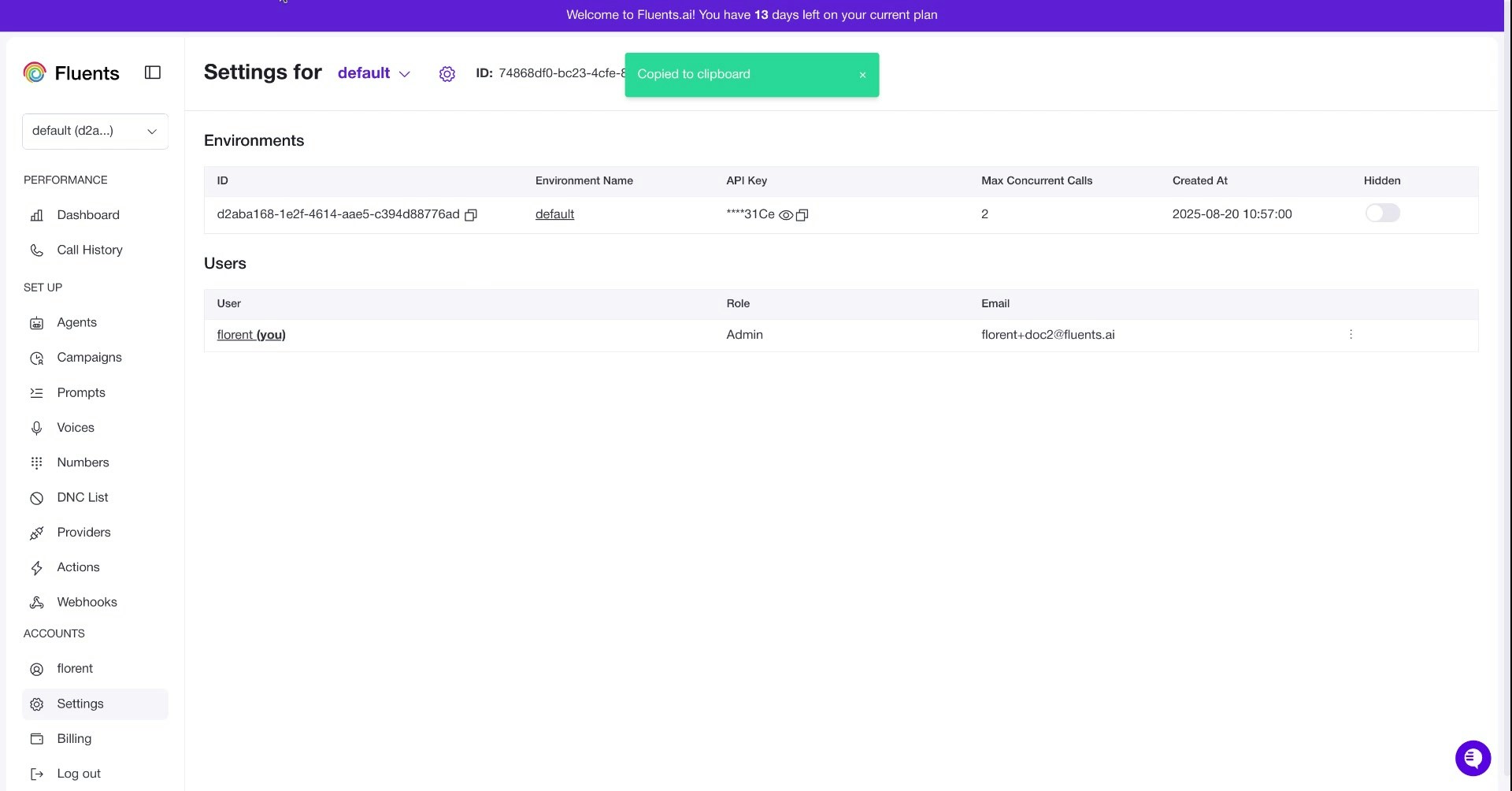
1. On the **Settings** page, find your API key.
2. Copy the key.
3. Use it to authenticate integrations with external services or custom applications.
***
## Step 2: Locate and Copy API Key
1. On the **Settings** page, find your API key.
2. Copy the key.
3. Use it to authenticate integrations with external services or custom applications.