> ## Documentation Index
> Fetch the complete documentation index at: https://docs.fluents.ai/llms.txt
> Use this file to discover all available pages before exploring further.
# Prompts
> Keep reusable prompts and building blocks in one place, so agents start from something known rather than a blank box.
**Prompts** is a library. It holds full agent prompts you can start an agent from, and
smaller **building blocks** you can drop into a prompt you are writing.
The point is not to store text. It is that a prompt you got right once should not have
to be rewritten from memory the next time.
***
## Two types
| Type | What it is |
| ------------------ | ------------------------------------------------------------- |
| **Prompt** | A complete agent prompt. Selectable when you set up an agent. |
| **Building Block** | A fragment you insert into a prompt while writing it. |
Fluents ships examples of both. **Sales**, **Debt Relief** and **Customer Support**
are prompts. **Disfluencies**, **Book Appointment** and **Appointment Retrieval** are
building blocks.
Filter the list by **Type**, by **Created By** to separate the built-in ones from your
own, or search the content directly.
***
## Writing one
**Create Prompt Template** opens the editor.
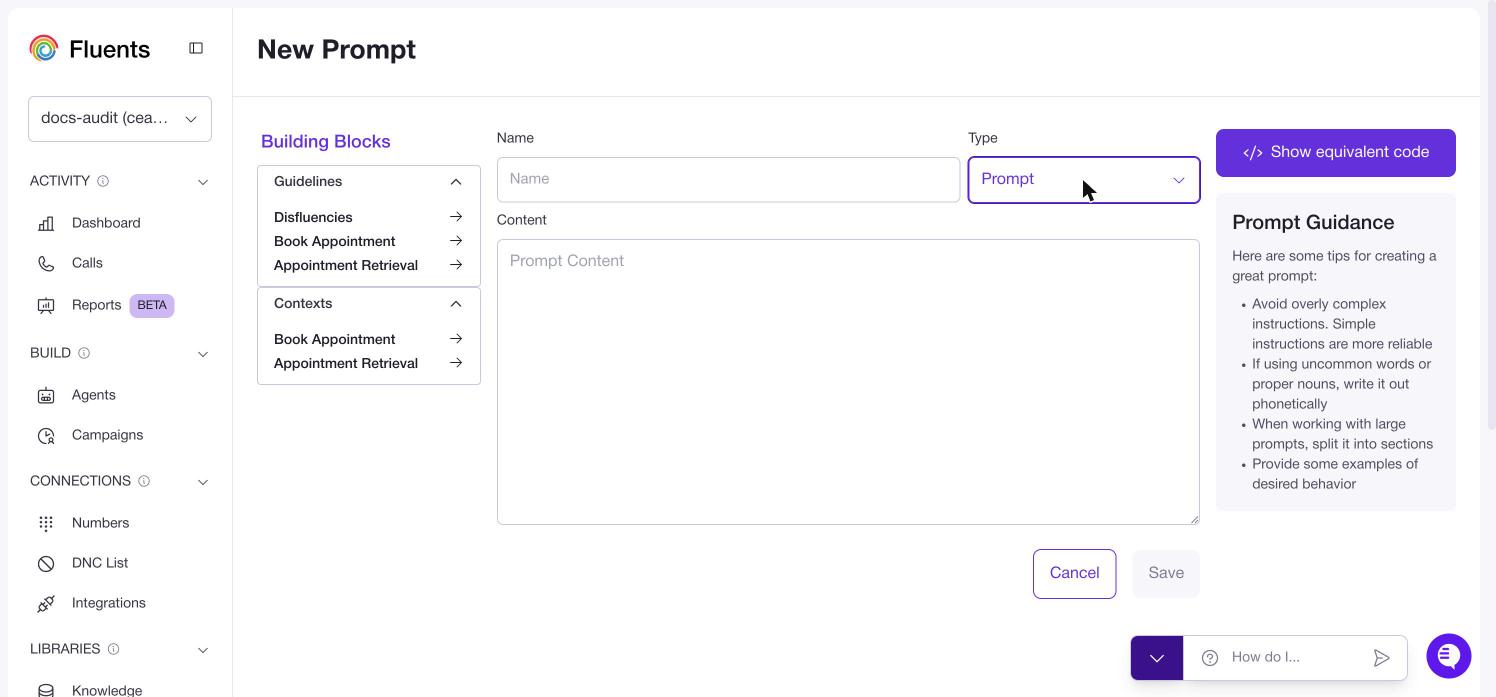 Give it a **Name**, choose the **Type**, and write the **Content**.
The **Building Blocks** panel on the left holds the blocks available to you, grouped
by what they are for, such as **Objectives**, **Guidelines**, **Contexts** and
**Examples**. You will only see groups you actually have blocks for. The arrow beside
each one drops it into your content, so you assemble rather than retype.
***
## What makes a prompt work
The editor carries this guidance, and it is worth repeating because it is the
difference between an agent that behaves and one that improvises.
* **Keep instructions simple.** Simple instructions are more reliable than complex
ones. This is the one people ignore.
* **Spell out unusual words phonetically.** Product names and proper nouns get
mangled otherwise, because the agent is reading them aloud.
* **Split large prompts into sections.** A wall of text is harder for the agent to
follow than the same content under headings.
* **Give examples of what you want.** Showing beats describing.
***
## Using a prompt on an agent
Open the agent and find **Agent Prompt** on the **Basic Information** tab. The
dropdown above the text box lists the prompts in your library. Pick one and it fills
the box, after which you can edit it freely for that agent.
Only entries of type **Prompt** appear in that dropdown. Building blocks do not,
because they are meant to be composed into a prompt here rather than used as one.
The dropdown lists prompts by their **content**, not their name. A library of well
named prompts still shows up as a list of first lines, so make the opening sentence
of each prompt distinctive enough to recognise.
Choosing a prompt copies it. Editing the agent's prompt afterwards does not change the
library, and editing the library entry does not change agents already using it.
***
## Where to go next
* Put the prompt to work: **[Agents](/product/features/agent)**
* Have the agent propose prompt changes from a real call: **[Testing an agent](/product/features/agent-testing)**
* Reference stored content instead of writing it into the prompt: **[Knowledge Bases](/product/features/knowledge-base)**
Give it a **Name**, choose the **Type**, and write the **Content**.
The **Building Blocks** panel on the left holds the blocks available to you, grouped
by what they are for, such as **Objectives**, **Guidelines**, **Contexts** and
**Examples**. You will only see groups you actually have blocks for. The arrow beside
each one drops it into your content, so you assemble rather than retype.
***
## What makes a prompt work
The editor carries this guidance, and it is worth repeating because it is the
difference between an agent that behaves and one that improvises.
* **Keep instructions simple.** Simple instructions are more reliable than complex
ones. This is the one people ignore.
* **Spell out unusual words phonetically.** Product names and proper nouns get
mangled otherwise, because the agent is reading them aloud.
* **Split large prompts into sections.** A wall of text is harder for the agent to
follow than the same content under headings.
* **Give examples of what you want.** Showing beats describing.
***
## Using a prompt on an agent
Open the agent and find **Agent Prompt** on the **Basic Information** tab. The
dropdown above the text box lists the prompts in your library. Pick one and it fills
the box, after which you can edit it freely for that agent.
Only entries of type **Prompt** appear in that dropdown. Building blocks do not,
because they are meant to be composed into a prompt here rather than used as one.
The dropdown lists prompts by their **content**, not their name. A library of well
named prompts still shows up as a list of first lines, so make the opening sentence
of each prompt distinctive enough to recognise.
Choosing a prompt copies it. Editing the agent's prompt afterwards does not change the
library, and editing the library entry does not change agents already using it.
***
## Where to go next
* Put the prompt to work: **[Agents](/product/features/agent)**
* Have the agent propose prompt changes from a real call: **[Testing an agent](/product/features/agent-testing)**
* Reference stored content instead of writing it into the prompt: **[Knowledge Bases](/product/features/knowledge-base)**