> ## Documentation Index
> Fetch the complete documentation index at: https://docs.fluents.ai/llms.txt
> Use this file to discover all available pages before exploring further.
# Post-call
> Decide what to pull out of every call, judge whether the call went well, and send a follow up email or SMS afterwards.
Everything on an agent's **Post-Call** tab happens after the conversation ends. It
turns a recording into something you can search, count and act on.
There are four parts:
1. **Call Insights** pull specific facts out of the conversation.
2. **Result Conditions** decide whether the call counted as a success.
3. **Post-Call Messaging** sends a follow up email or SMS.
4. **Sync Post-Call Activity to CRM** records it in your CRM.
***
## Call Insights
An **insight** is one thing you want to know about every call. The caller's name.
Whether they agreed to a follow up. Which product they asked about.
Once configured, insights show on each call in **[Calls](./call)**, can be filtered
on, and can be included in a CSV export.
### Creating an insight
Select **Add Call Insight**, then either **Create new insight** or **Add existing
insights** to reuse one already defined in this environment.
A new insight needs four things:
| Field | What it is |
| --------------------------------- | ---------------------------------------------------------------------------------- |
| **Description** | What you are trying to learn, in plain language. |
| **ID** | The short name you use to refer to it elsewhere. It fills in from the description. |
| **Type** | Yes / No, Number, Selector, or Text. |
| **How to determine this insight** | Instructions for reading the value out of the call. |
**Selector** adds a **Choices** list, so the answer has to be one of the options you
allow. That is what makes an insight countable later, rather than free text you have
to read.
**Test Insight** runs it before you save.
Pick **Selector** over **Text** whenever you can. "Order issue, Product question,
Something else" can be charted. A sentence cannot.
### Generating insights
**Generate Insights** reads your agent prompt and proposes a set for you.
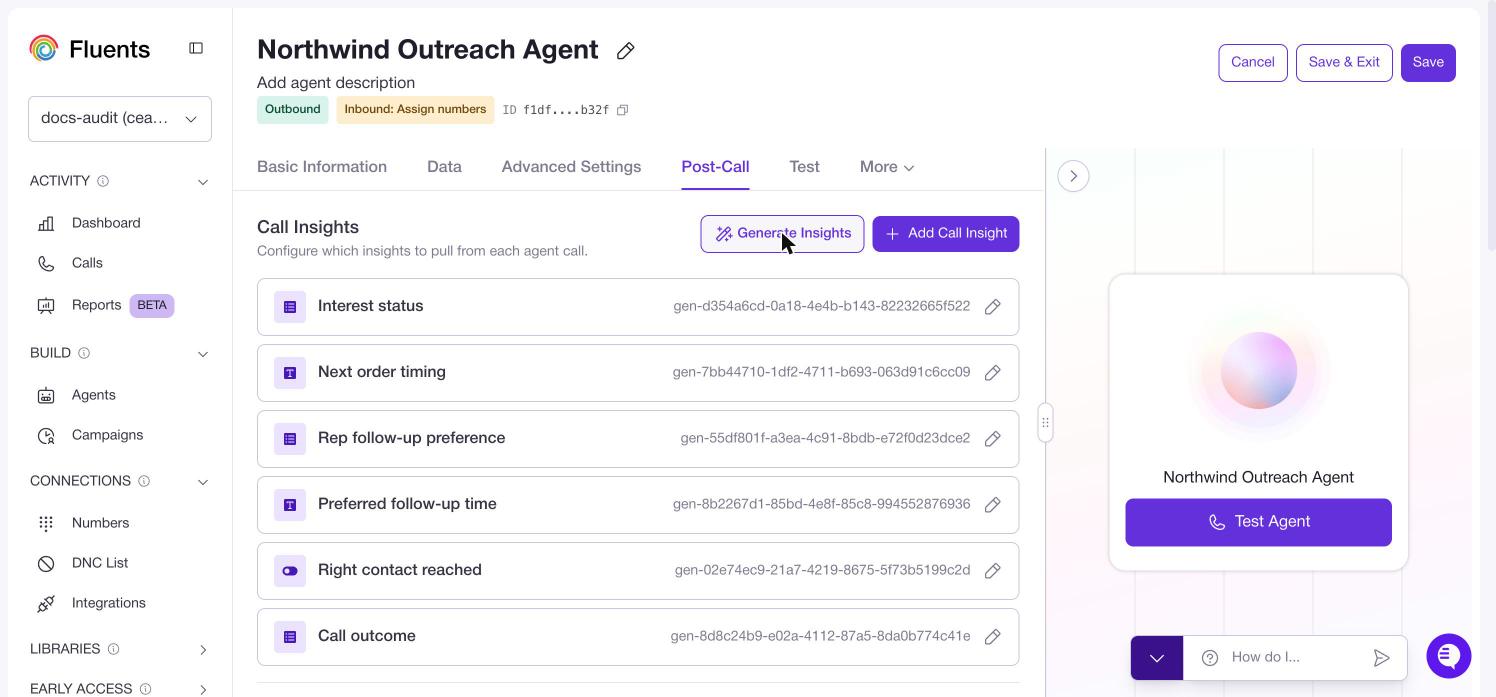 It is a good starting point, but check the **ID** on each one. Generated insights get
long automatic identifiers, and the ID is what you type when referencing an insight
in a filter or a message template. Rename them to something short before you rely on
them.
***
## Result Conditions
**Result Conditions** turn a call into a pass or a fail. The result appears in the
**Result** column in Calls, drives the **Agent performance** panel on the Dashboard,
and can be filtered and exported.
You build two rule sets, one for **Successful outcome** and one for **Unsuccessful
outcome**. Each condition is based on either a **Call** property, such as whether
voicemail was detected, or a **Call Insight** value.
How the logic works:
* Conditions inside one set must **all** be true.
* **Or if** starts another set. Any set matching is enough.
* If a call matches both the successful and unsuccessful rules, it counts as
**Unsuccessful**.
With no conditions configured, every call shows a blank Result. This is the most
common reason the Result column looks empty.
***
## Post-Call Messaging
**Add Message** creates a rule that sends an email or an SMS after the call. You can
add several, each with its own conditions, so a call that went one way gets a
different follow up from one that went another.
***
## Sync Post-Call Activity to CRM
Records call insights and messaging activity against the contact in your CRM. Pick
the connection you want to write to. Connections are set up in
**[Integrations](./providers)**.
***
## Where to go next
* See insights and results on real calls in **[Calls](./call)**.
* Configure the agent that produces them in **[Agents](./agent)**.
* Connect a CRM in **[Integrations](./providers)**.
It is a good starting point, but check the **ID** on each one. Generated insights get
long automatic identifiers, and the ID is what you type when referencing an insight
in a filter or a message template. Rename them to something short before you rely on
them.
***
## Result Conditions
**Result Conditions** turn a call into a pass or a fail. The result appears in the
**Result** column in Calls, drives the **Agent performance** panel on the Dashboard,
and can be filtered and exported.
You build two rule sets, one for **Successful outcome** and one for **Unsuccessful
outcome**. Each condition is based on either a **Call** property, such as whether
voicemail was detected, or a **Call Insight** value.
How the logic works:
* Conditions inside one set must **all** be true.
* **Or if** starts another set. Any set matching is enough.
* If a call matches both the successful and unsuccessful rules, it counts as
**Unsuccessful**.
With no conditions configured, every call shows a blank Result. This is the most
common reason the Result column looks empty.
***
## Post-Call Messaging
**Add Message** creates a rule that sends an email or an SMS after the call. You can
add several, each with its own conditions, so a call that went one way gets a
different follow up from one that went another.
***
## Sync Post-Call Activity to CRM
Records call insights and messaging activity against the contact in your CRM. Pick
the connection you want to write to. Connections are set up in
**[Integrations](./providers)**.
***
## Where to go next
* See insights and results on real calls in **[Calls](./call)**.
* Configure the agent that produces them in **[Agents](./agent)**.
* Connect a CRM in **[Integrations](./providers)**.